

ON1 Photo RAW 2027 Guided tour Step 1 of 6
Open Resize AI
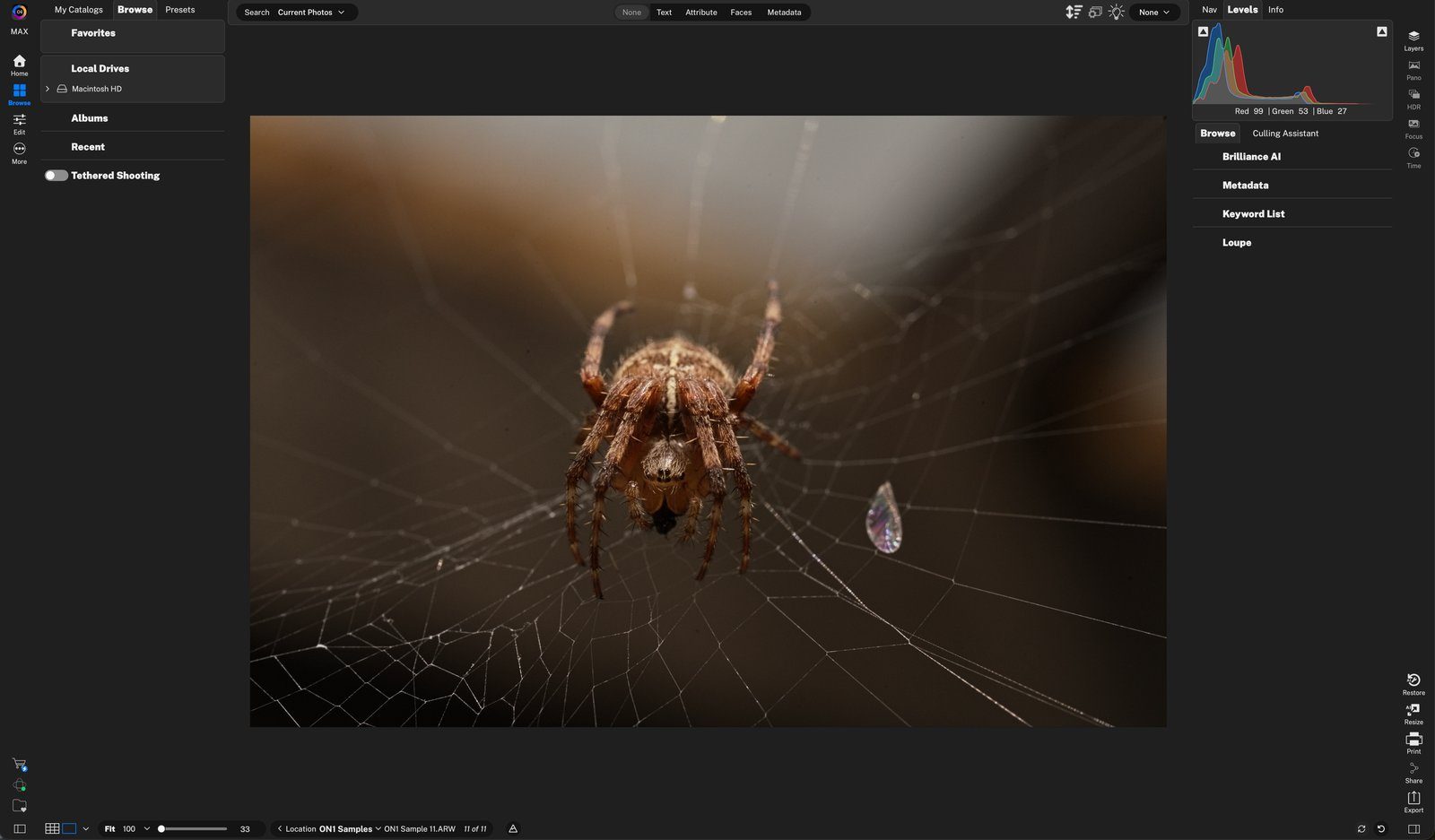
Resize AI enlarges your photo while keeping it sharp. Open it from the Resize button in the lower right corner, just like Restore AI.
Welcome to Resize AI
Resize AI helps you recompose and enlarge your photo while keeping it sharp. Start by choosing how to scale it: by percentage, by dimensions, or by the length of one side.
Crop to Fit
To recompose your photo, zoom in, or fit a specific paper size, use the Crop tool.
AI Model Selection
Pick an AI model. Standard is fast and works well on most photos, even in batches or at large sizes. Highest Quality rebuilds missing detail, which is ideal for small photos and tight crops. It is slower, but often worth the wait.
Fix Those Faces
If your photo has obvious faces in it, turn on Face Recovery to make them look their best.
Batch Process
To batch process with Resize AI, select multiple photos in the Filmstrip. Then right-click and choose to sync the Resize settings across all of them.
Highest Quality: slower, best for small photos and tight crops. Click anywhere to continue
Tour complete
You opened Resize AI and walked through its tips: Resize to, Crop, AI model, Face Recovery and batch processing.
- 1Resize
- 1Resize to
- 1Crop Tool
- 1AI model
- 1Face Recovery
- 1Filmstrip