Portrait Lightroom Presets
Looking to make your portrait editing process more efficient and impactful? ON1's portrait Lightroom presets are exactly what you need. Our portrait presets are part of our entire selection of downloadable Lightroom presets, each tailored to meet the needs of photographers who demand the best. Whether you're looking to enhance skin tones, add depth, or simply give your images that professional edge, ON1 Lightroom presets for portraits deliver consistent, high-quality results every time.
- Lightroom Classic
- Lightroom 6
- Lightroom 5
- Lightroom 4
- Lightroom Mobile
- See Portrait AI
-
Experience flawless retouching in one click
© Tamara Lackey Photography
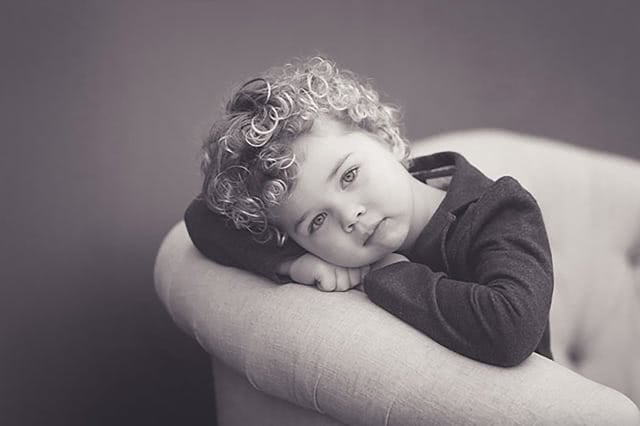
ON1 Kids Matte B&W Presets
Partner: Bliss Studio • 10 Presets
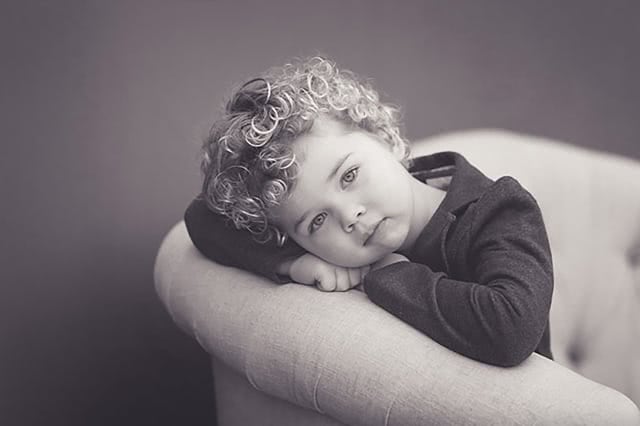
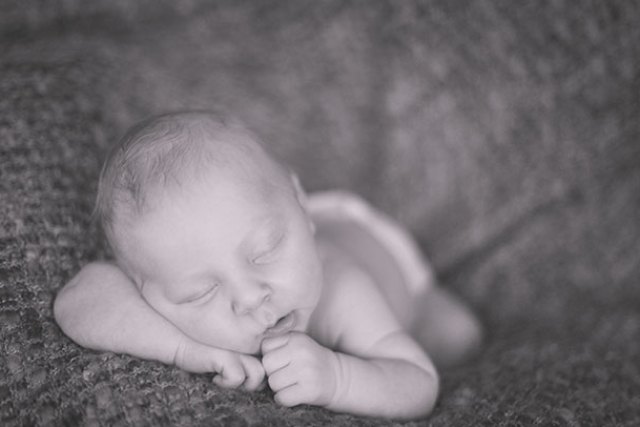
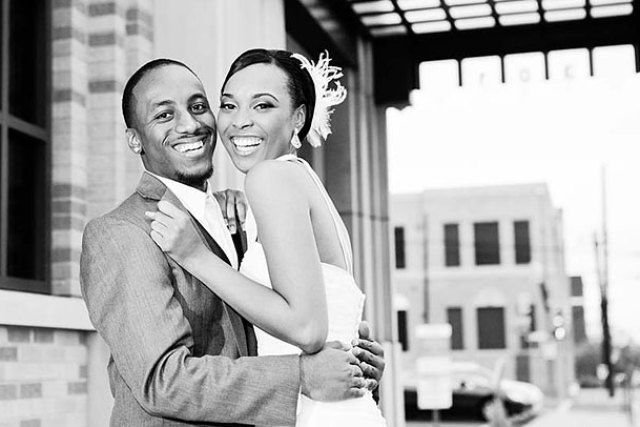
This preset pack, created by Bliss Studio, is perfect for baby and kid portraits. Each preset offers a matte Black and White look that will complement those beautiful skin tones.
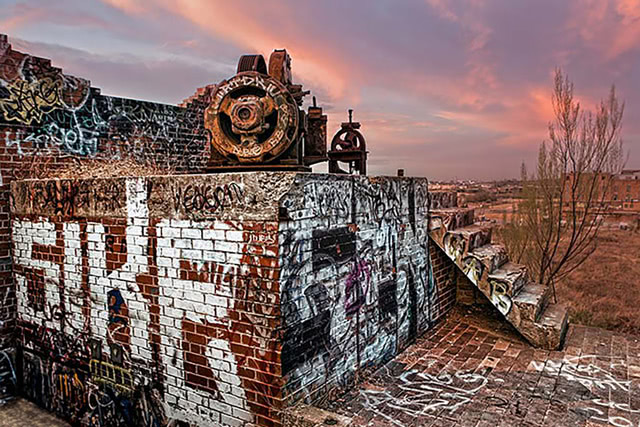
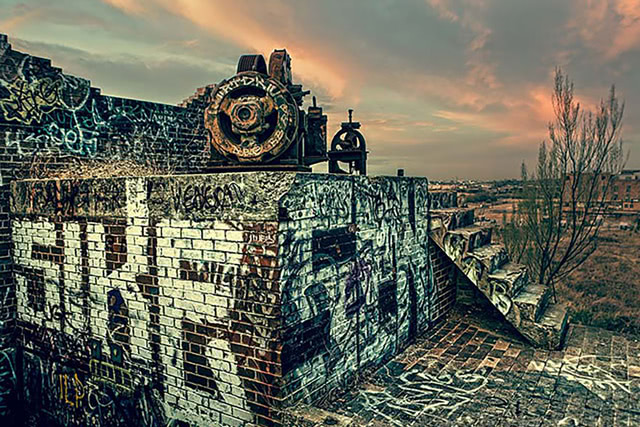
ON1 Signature Collection Presets, Vol. 1
ON1 Original • 62 Presets
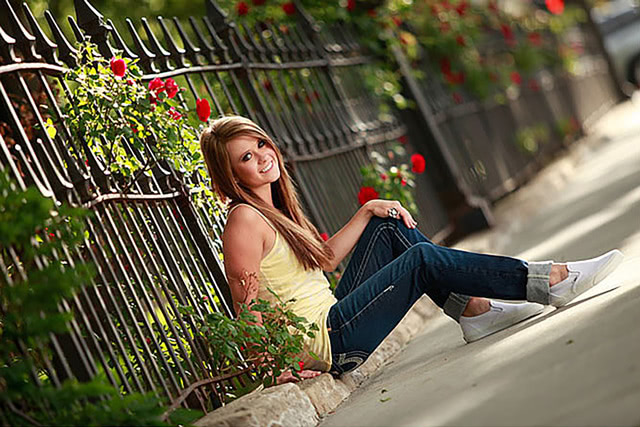
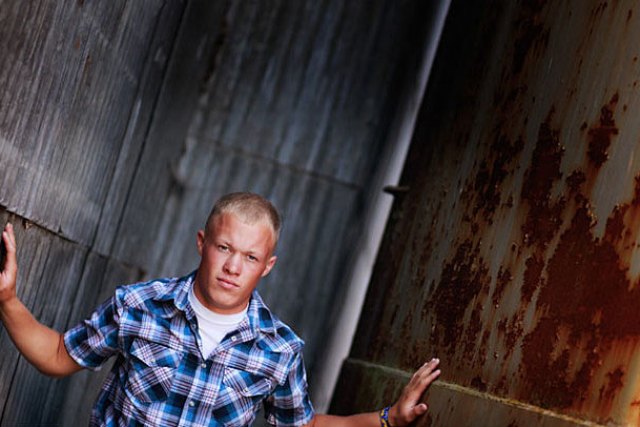
Enhance your images with the ON1 Signature Collection Presets for Lightroom. Use this collection of 62 presets, created with the adjustment tools found in Lightroom, to make your images pop.
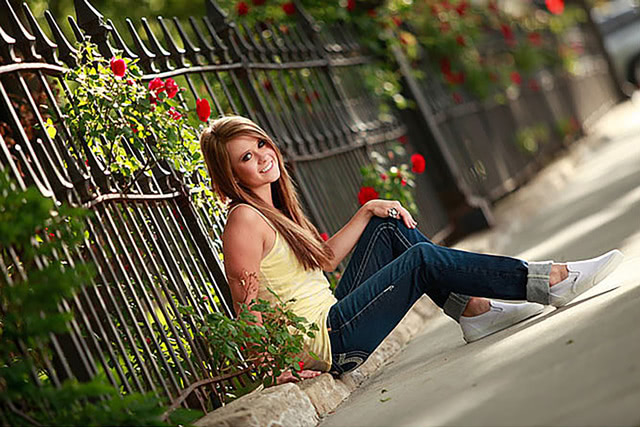
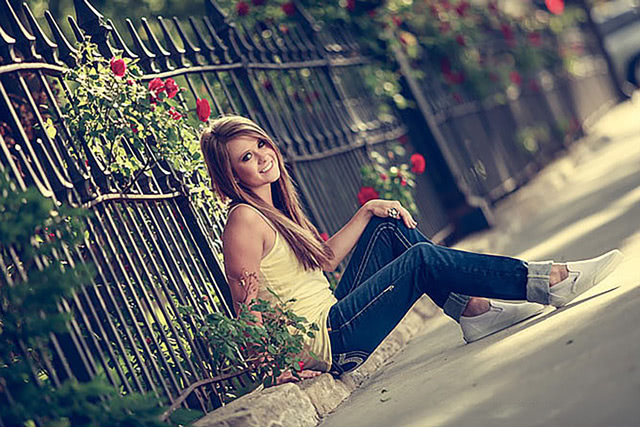
ON1 Signature Collection Presets, Vol. 2
ON1 Original • 16 Presets
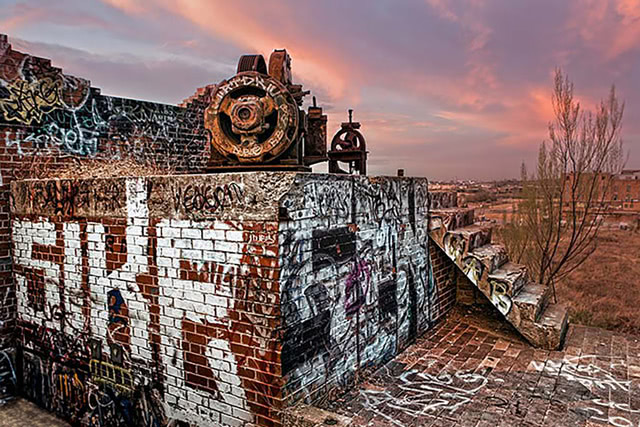
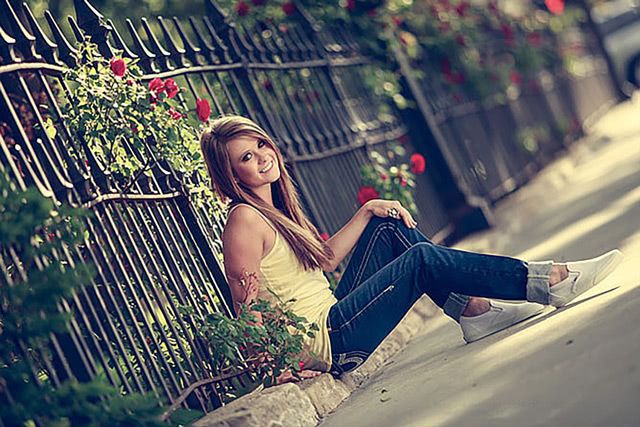
Enhance your images with this new set of 16 presets for Lightroom. These presets will help you get the look of popular Instagram filters, cross-processing techniques, grunge looks, and much more!
What Are ON1 Portrait Lightroom Presets?
ON1 Lightroom presets are essentially pre-configured settings that you can apply to your photos in Adobe Lightroom with just a click. Lightroom presets are designed to streamline your editing workflow by providing consistent, professional-quality adjustments that enhance the look and feel of your images. Think of them as a shortcut to achieving specific effects or styles without having to adjust every setting manually.
Our portrait Lightroom presets are finely tuned tools for portrait photography — each is designed to handle the unique challenges of portrait editing, such as refining skin tones, emphasizing facial features, and creating a balanced look across your images.
How to Add Presets Into Lightroom
Download the Pack
Grab your chosen portrait preset pack above — it's free, no credit card required.
Import into Lightroom
Drop the files into the Develop module's Presets panel.
Apply & Refine
Apply with a single click, then fine-tune settings to match your creative vision.
Tips for Getting the Most Out of Portrait Presets for Lightroom
Using ON1's portrait presets can significantly streamline your editing process, but knowing a few tips can help you maximize their potential:
1
Start with a Strong Base Image
The best Lightroom presets for portraits will be your images, but they always work best when applied to well-exposed and well-composed photos. Make sure your original image has a good balance of light and shadow.
2
Customize the Presets
Every image is unique. Don't hesitate to adjust the settings after applying a preset — tweak exposure, contrast, or color balance to ensure the final result matches your vision.
3
Use Local Adjustments
Sometimes specific areas of an image need a bit more attention. Use Lightroom's brushes and gradients to refine the effect on particular parts of the portrait — brightening the eyes or smoothing skin tones.
4
Experiment with Different Presets
Don't be afraid to try out multiple presets on the same image to see which brings out the best in your photo. This exploration can also help you discover new editing styles.
5
Stack Presets for Unique Looks
Start with a basic color correction preset, then layer a portrait preset on top for a unique finish. Just be mindful of over-editing — sometimes less is more.
5 Tips for Better Portrait Editing
Check out this video to learn five simple tips for enhancing your portrait edits with ON1 Photo RAW! Discover how to refine skin tones, smooth out imperfections, and add dimension to your portraits using localized adjustments. Plus, get insider tricks for making eyes pop and mastering the art of lighting.
FAQs: Lightroom Presets for Portraits
Yes, portrait Lightroom presets are fully customizable. After applying a preset, you can adjust individual settings like exposure, contrast, or color balance to better fit the specific needs of your image.
The best Lightroom presets for portraits are compatible with the newer versions of Lightroom Classic and Lightroom CC. Compatibility might vary with older versions or mobile apps, so it's always a good idea to check the preset's specifications first.
Yes, portrait Lightroom presets can be applied to both RAW and JPEG images. They typically yield the best results with RAW files, since those contain more image data for greater flexibility and higher-quality adjustments.
Download the Best Lightroom Presets for Portraits
With ON1's portrait Lightroom presets, transforming your portrait photography has never been easier. Explore our selection today and see how these presets can bring your creative vision to life in every portrait you edit.
Keep Reading