

 ON1 Photo RAW
ON1 vs. Adobe Lightroom
ON1 Photo RAW vs. Lightroom: Which One Actually Fits How You Shoot?
See for yourself how ON1 Photo RAW and Adobe Lightroom compare on price, editing power, AI tools, and how hard it is to make the switch.
- 30-Day Money-Back Guarantee
- No Subscription Required
- 250,000+ Photographers
Quick Verdict
Quick Verdict
If you've spent any time adding up what Lightroom costs you over a few years, you already know why you're here. This is where you can compare ON1 vs Lightroom in each area of your photo editing workflow.
The short answer: ON1 Photo RAW covers what most photographers use Lightroom and Lightroom Classic for (RAW editing, organizing, and AI tools) and adds layers and focus stacking that Lightroom leaves to Photoshop, for once instead of $11.99 or more every month. Lightroom is still the better pick if you depend on Adobe's cloud sync across devices or already pay for all of Creative Cloud.
Buying now? Pre-orders include the next major version of ON1 Photo RAW free when it releases this fall.
| ON1 Photo RAW | ON1 Photo RAW MAX | Adobe Lightroom Plan | Adobe Photography Plan | |
|---|---|---|---|---|
| Price | one-time | one-time | $11.99/mo | $19.99/mo |
| Ownership | You own your license, no subscription | You own your license, no subscription | Access ends if you stop paying | Access ends if you stop paying |
| AI editing tools | NoNoise AI, Portrait AI, Sky Swap AI, Resize AI, Generative Erase, Super Select AI | Everything in Photo RAW, plus Restore AI | Denoise, Generative Remove, Lens Blur, Adaptive Presets | Same as Lightroom |
| Layers & compositing | Full layers, masks, and blend modes built in | Full layers, masks, and blend modes built in | Not available | Available in Photoshop, a separate app |
| Organization (DAM) | Browse and edit folders directly, no import required | Same | Catalog-based, requires import | Same |
| Plugin support | Not included | Works as a plugin in Lightroom, Photoshop, Capture One, Affinity, Apple Photos | N/A | N/A |
| Mobile app | ON1 Photo RAW for Mobile | ON1 Photo RAW for Mobile | Lightroom Mobile (cloud sync) | Lightroom Mobile (cloud sync) |
| HDR, panorama, focus stacking | All three built in | All three built in | HDR and panorama merge; no focus stacking | HDR and panorama merge; focus stacking requires Photoshop |
Both Adobe plans include Lightroom (the cloud-based app) and Lightroom Classic (the desktop app). The Photography Plan adds Photoshop. Everything on this page applies to both Lightroom apps unless we say otherwise.
Pricing
Pricing: Pay Once vs. Pay Every Month
Lightroom's monthly price looks small until you start doing the math. ON1's price looks bigger at first, then it's just what you own without ongoing monthly subscription costs.
| Timeframe | ON1 Photo RAW | Adobe Lightroom Plan ($11.99/mo) | Adobe Photography Plan ($19.99/mo) |
|---|---|---|---|
| Year 1 | $143.88 | $239.88 | |
| 3 years | * | $431.64 | $719.64 |
| 5 years | * | $719.40 | $1,199.40 |
Adobe prices are US annual-plan prices, billed monthly, as of publish date. Both plans include Lightroom and Lightroom Classic. *ON1 Photo RAW keeps working with no additional payment required. If you choose to upgrade to a newer version down the road for new features, ON1 offers a discounted upgrade price to existing owners. Even with an occasional upgrade, most photographers still spend a fraction of what a multi-year Lightroom subscription costs.
That is ON1 Photo RAW's regular price, full stop, not a sale or an introductory rate. You buy it once, install it on two computers, and keep editing on it for as long as you own a computer that runs it. You're never required to pay for a subscription and risk losing access to your own photo library, because there's no subscription.
If you want the plugin version, the Restore AI restoration tools, or up to three installations, ON1 Photo RAW MAX runs , also one time. Both editions include a 30-day money-back guarantee, so you can put them through a real edit session before deciding.
For photographers who'd rather spread the cost, ON1 also offers an optional monthly plan starting at $17.99/mo with no long-term contract required. Most photographers on this page are here to get off subscription billing entirely, so we lead with the one-time price, but the option exists if a smaller upfront cost matters more to you right now.
Comparing more than two editors? See the best photo editing software without a subscription.
5-Year Cost of Ownership
ON1 Photo RAW vs. Adobe Lightroom, cost at Year 1, 3, and 5
- ON1 Photo RAW (one-time purchase)
- Adobe Lightroom Plan
- Adobe Photography Plan
ON1 Photo RAW
Adobe Lightroom Plan
Adobe Photography Plan
Each group shows Year 1 / Year 3 / Year 5, left to right
Feature by Feature
Feature by Feature
RAW Processing and Image Quality
Both apps process RAW files from every major camera, and you won't get a visibly worse starting point from either one. The difference shows up after the RAW conversion. Both give you the core adjustments (exposure, white balance, tone curves, and per-color controls). ON1 adds layers, masking, and blend modes on top, which Lightroom only offers once you open Photoshop separately.
AI Editing Tools
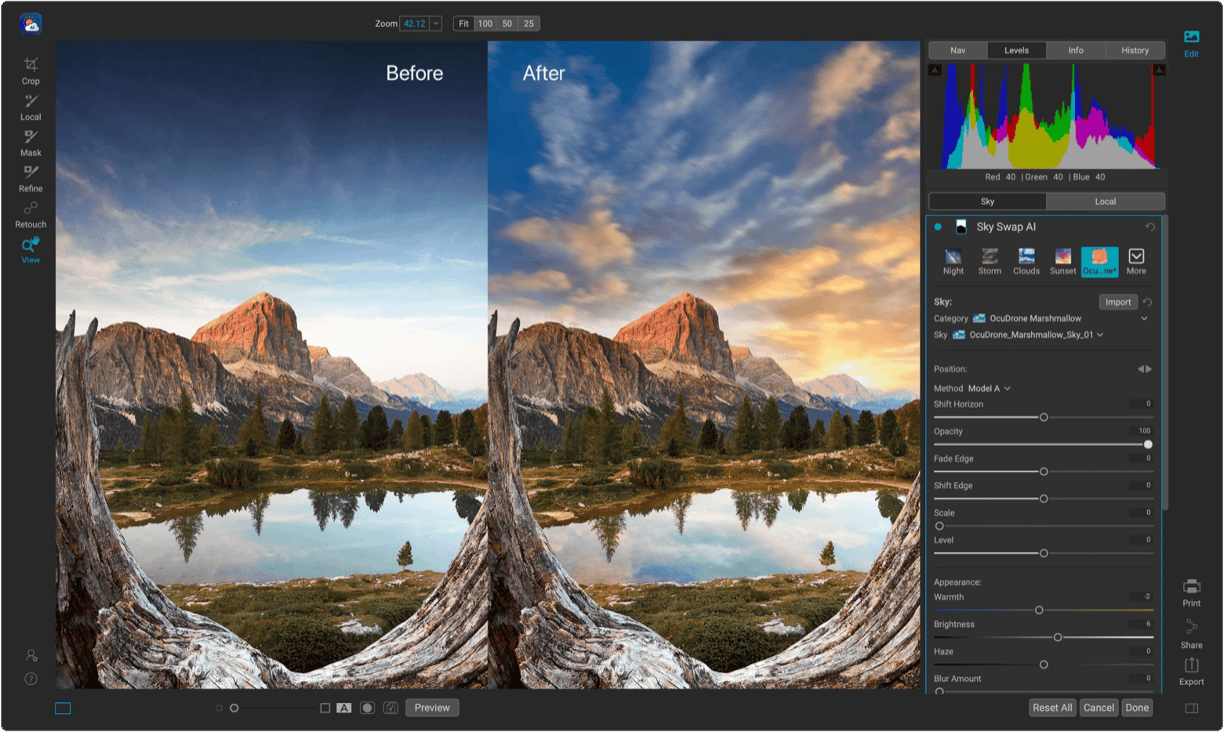
ON1 built its AI tools to work inside the same editing session as everything else. NoNoise AI rescues detail in high-ISO shots. Sky Swap AI replaces a flat sky in a few clicks. Super Select AI isolates a subject or background instantly. Resize AI enlarges files for print without softening detail. Generative Erase removes distractions from a frame without leaving a visible patch.
Lightroom's AI tools are part of your subscription, and its generative features, like Generative Remove, draw from a monthly generative credit allotment. ON1's AI tools are included with your one-time purchase, no credits to track.
Organization and Digital Asset Management
Lightroom and Lightroom Classic both organize through a catalog. You import photos into it, and the catalog becomes the single source of truth for your edits, keywords, and ratings. It's a proven system, and Lightroom's search and filtering inside that catalog are strong, including face-based grouping.
ON1 works directly from your folders. Point it at a drive and you'll see what's there, no import step required. You can tag, rate, stack, and build albums the same way you would in a catalog, but your files stay organized the way you already have them on disk. If you've ever lost time to a corrupted or bloated Lightroom catalog, this is the difference that matters most.
Performance and Speed
ON1 works straight from your folders, so there's no import step and no catalog to build before you can start editing. GPU acceleration speeds up previews, rendering, and AI tools like NoNoise AI, so the heavy lifting runs faster on the computer you already have.
Layers and Local Adjustments
This is where the two products diverge the most. Lightroom's local adjustments (brushes, gradients, masks) modify pixels non-destructively within a single image, but there's no concept of stacked layers. To composite, blend exposures manually, or do the kind of local work a retoucher needs, you open Photoshop.
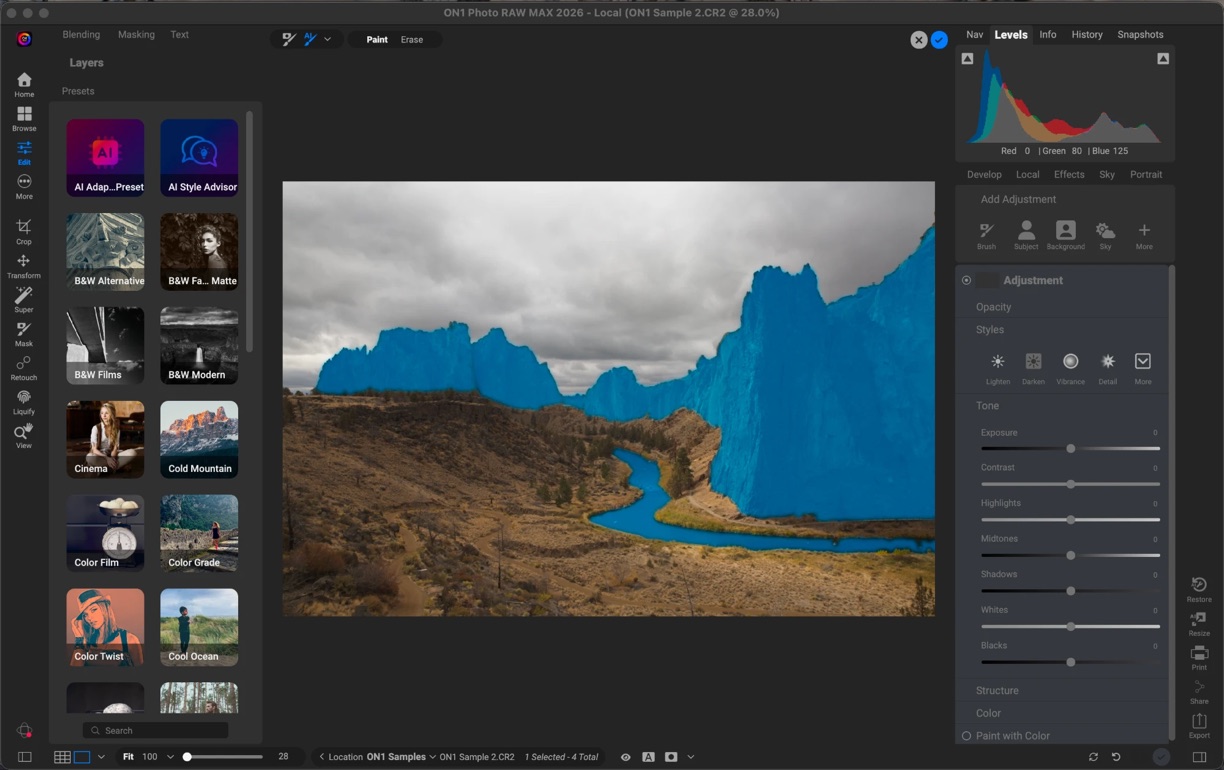
ON1 Photo RAW has full layers built in: image layers, adjustment layers, and masks with blend modes, in the same app you're already editing in. For photographers who do any compositing, sky replacement, or blended exposure work, that's one less app in the workflow.
Presets and Effects
Both apps support presets, and Lightroom has a solid ecosystem, including Adaptive Presets that respond to what's in the image.
ON1's Effects module goes further, with over 30 stackable creative filters, from Dynamic Contrast and Glow to Sunshine and Lens Flare, each one fully maskable. You can combine multiple effects, mask each one independently, and preview them before you commit.
Mobile Editing
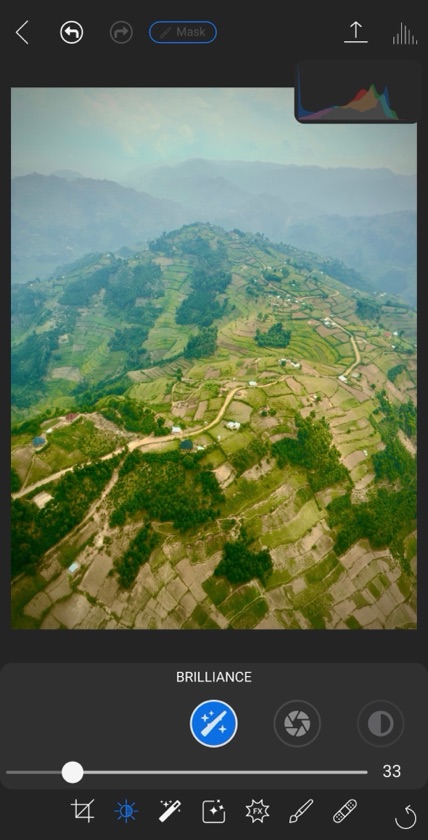
Both companies offer a mobile app. Lightroom Mobile syncs your full catalog across devices through Adobe's cloud, which is convenient if you're already paying for that storage. With ON1 Photo RAW for Mobile, you can edit RAW files on the go without a subscription.
Migration
Moving Your Lightroom Classic Catalog to ON1
Most photographers who put off leaving Lightroom are worried about losing years of keywording, ratings, and edits, more than they're worried about the price. ON1's Migration Assistant handles that transfer in a few steps.
Before you migrate
- 1 Connect any external drives your Lightroom Classic catalog references, then run Classic's Synchronize Folder command so the catalog matches what's actually on disk and any broken links are cleared up.
- 2 Do a quick pass to remove photos and collections you don't need anymore. A smaller, cleaner catalog migrates faster and gives you a better starting point in ON1.
- 3 If you have more than one Lightroom Classic catalog, migrate them one at a time.
Migrate your catalog (recommended path)
With ON1 Photo RAW installed, open Lightroom Classic and go to File > Plug-in Extras > Migrate Catalog to ON1 Photo. The Migration Assistant walks the transfer automatically in the background, so you can keep working in either app while it runs.
What comes with it:
- Keywords and star ratings
- Lightroom edits, carried over as XMP data
- Standard Collections, converted into ON1 Albums, with collection sets preserved as album groups
- Your existing folder structure, brought in as Cataloged Folders
What to know going in:
- Smart Collections don't migrate automatically. You'll recreate them as Smart Albums in ON1, which use the same rule-based logic.
- ON1 and Lightroom use different raw-processing engines, so an edit that migrates won't always render pixel-for-pixel identical. Most global edits (exposure, white balance, tone) carry over cleanly. Complex local adjustments are the ones most likely to need a touch-up after the move.
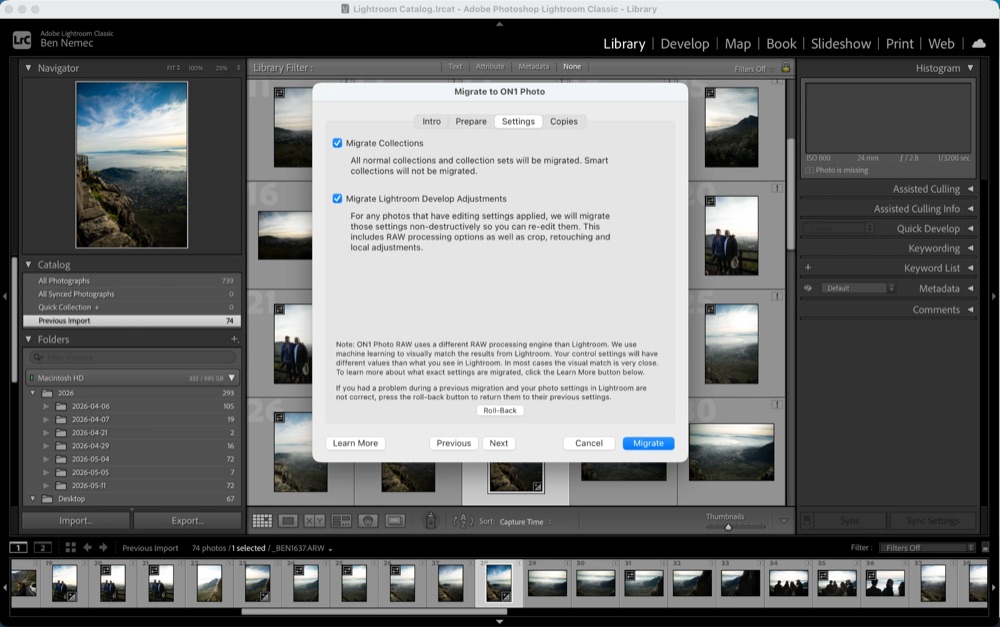
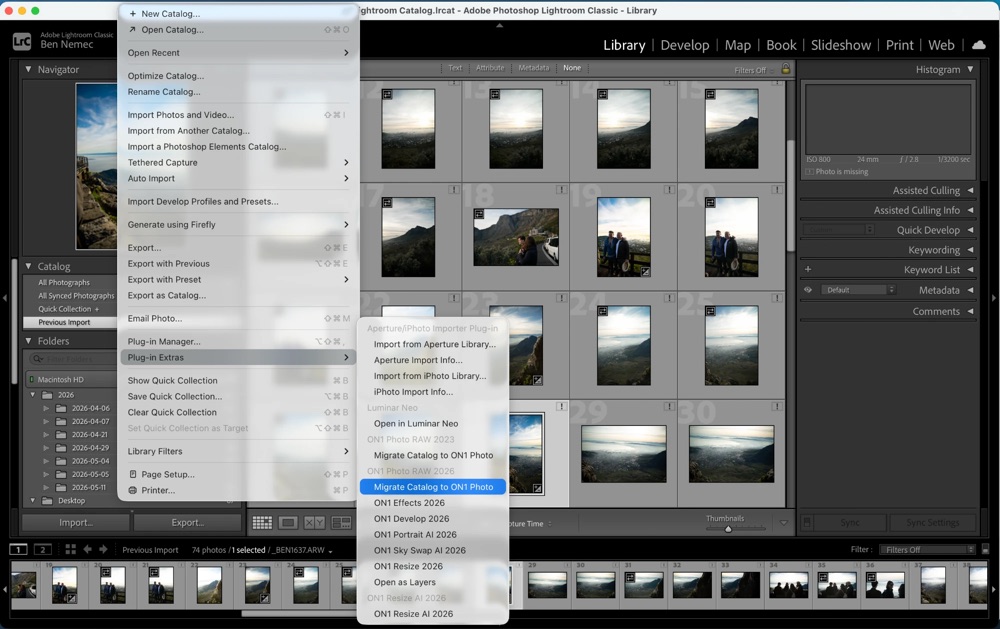
Using cloud-based Lightroom instead of Classic? The Migration Assistant runs inside Lightroom Classic. Download your originals to a local drive, then use the simpler path below to start editing in ON1.
The simpler path: skip the catalog entirely
If your Lightroom catalog is more trouble than it's worth, you can skip migration altogether. Open ON1 Photo RAW, browse to where your photos live, and mark the top-level folders as Cataloged Folders. ON1 indexes everything in the background and you're editing within minutes. You won't bring over Lightroom-specific metadata this way, but for photographers starting fresh, this is the fastest way in.
Who Should Switch
Who Should Switch (and Who Shouldn't)
ON1 is a strong fit if:
- You're tired of paying Adobe every month for tools you already know how to use.
- You want layers, masking, and compositing without also paying for and learning Photoshop.
- You want built-in HDR merge, panorama stitching, and focus stacking without a plugin.
- You want the option to also use ON1 as a plugin inside Lightroom, Photoshop, Capture One, or Affinity while you transition, instead of switching cold turkey.
- You'd rather keep your photo library on your own drives than inside a cloud-dependent catalog.
Lightroom may still be the better fit if:
- Your workflow depends on Lightroom's face recognition to find people across a large library. ON1 doesn't offer an equivalent yet.
- You rely on Adobe's cloud to keep one library in sync across your desktop, phone, and the web.
- You're already paying for the full Creative Cloud suite for other apps (Photoshop, Illustrator, Premiere), so Lightroom's marginal cost inside that bundle is low.
Lightroom is a capable app, and nothing above changes that. The real question is which one matches how you shoot, organize, and edit, and what you want to be paying for it five years from now.
Photographers love ON1
See What They're Saying
ON1 Photo Raw has all the capabilities and more of Lightroom and Photoshop rolled all into one. The user interface is simple and straightforward. All edits are completely reversible even when working in layers.
Karen
Processing and editing my photos is something I've dreaded but you really helped me quickly and joyfully get my photos out. This is a fantastic product that makes me more excited to get out and shoot.
Happy ON1 Customer
I like everything about ON1 Photo RAW. The masking features are fantastic. Everything keeps getting better and better.
Donald Carr
I have tried the rest and found ON1 Photo Raw the absolute best raw photo processing software of all.
Happy ON1 Customer
ON1 Raw is great. I particularly like AI Brilliance, which instantly improves photographs. ON1 make photo editing very easy and quick so that you can concentrate on creativity rather than hours of careful selecting.
Ann Walsh
Great software works very well with my workflow. Does everything I need (layers, effects, stacking, pano, etc.) without creating intermediate files. I can do everything in the original raw format.
Happy ON1 CustomerFrequently Asked Questions
Yes. for ON1 Photo RAW, for ON1 Photo RAW MAX, both paid once. You own your license and can keep using that version indefinitely. Future version upgrades are optional and offered to existing owners at a discount.
No. ON1's Migration Assistant brings over your keywords, ratings, and edits (as XMP data), and converts your Collections into Albums. Smart Collections need to be recreated as Smart Albums, and heavily localized edits may need a quick touch-up since ON1 and Lightroom process RAW files differently. See the full migration guide above.
Yes. ON1's Migration Assistant runs directly inside Lightroom Classic and brings over your keywords, ratings, edits, and collections. Like Classic, ON1 Photo RAW is a desktop app that works with photos on your own drives, so the day-to-day workflow will feel familiar, with layers, focus stacking, and no subscription added.
Yes. ON1 Photo RAW comes with a free 30-day trial, no credit card required, plus a 30-day money-back guarantee after purchase if it turns out not to be the right fit.
No. ON1 Photo RAW MAX also works as a plugin inside Lightroom, Photoshop, Capture One, Affinity, and Apple Photos, so you can run it alongside your current tools while you decide.
Minimum |
Recommended |
|
|---|---|---|
| Operating System |
(Current maintenance releases, 64 bit only) |
(Current maintenance releases, 64 bit only) |
| Processor |
macOS:
Windows:
|
macOS:
Windows:
|
| RAM |
8 GB (16 GB if shared with the GPU) |
32+ GB |
| Hard Drive |
6 GB for installation |
|
| Graphics |
macOS:
Windows:
|
macOS:
Windows:
|
| Optional Integration |
Photoshop CC, Photoshop Elements, Photoshop Lightroom Classic, Apple Photos, Affinity Photo, Capture One (Current versions for all) |
|
| Internet |
A high-speed internet connection and active account for installation, ON1 Cloud Sync, activation, auto-update checking, content downloads, and tutorials. |
|
| Supported Options |
|
|
| Supported Languages |
English, German, Spanish, French, Japanese, Korean, Simplified Chinese, Russian, Portuguese, Italian, Dutch |
|
Yes. ON1 Photo RAW for Mobile lets you edit RAW files on your phone or tablet. It's a separate download from the desktop app.
Everything you use Lightroom for. No subscription required.
- 30-Day Money-Back Guarantee
- No Subscription Required
- 250,000+ Photographers