

ON1 Photo RAW 2027 Guided tour Step 1 of 5
Start at Home
Photo RAW opens on Home. From here you can open your own photo, or try a Practice File that comes with the app.
Open in Develop
The photo opens in Edit on the Develop tab. Everything here is non-destructive, so your original is never changed.
One Click with Brilliance AI
Turn on Brilliance AI for an instant, balanced starting point.
Add an Effect
Give the photo a look on the Effects tab. Each filter has a switch, so you can try it and turn it off again.
Save and Return Home
Click the blue check to keep your edit. Your photo is updated, and you can come back and change it any time.
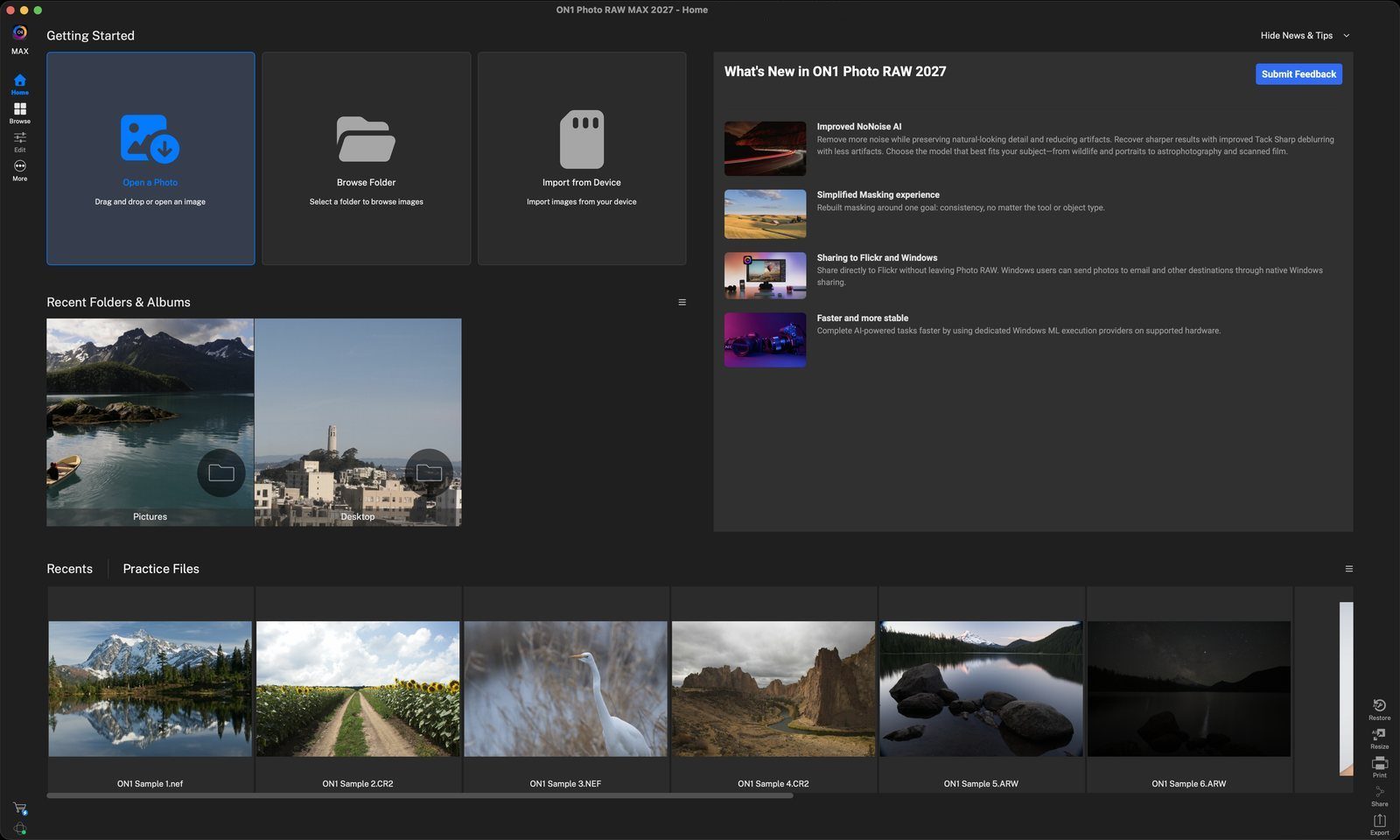
Open a PhotoClick here, or drag and drop a photo onto the card, to open your own image. Click anywhere to continue
Or try a Practice FileClick Practice Files, then double-click ON1 Sample 1.nef to open it in Edit. Click anywhere to continue
Develop tabYour edit starts here. The other tabs (Local, Effects, Sky, Portrait) are for the next steps. Click anywhere to continue
Brilliance AI is offThis is the original photo. The Tone & Color sliders are all at 0. Click anywhere to continue
Turn on Brilliance AIClick the switch for better tone and color right away. Use Amount to dial it up or down. Under Local Adjustments, it also finds regions like Flora, Sky and Water so you can set how much each one is enhanced. Click anywhere to continue
See what it changedOpen Tone & Color: Brilliance AI set Exposure, Highlights, Shadows, White Balance and more. Tweak any slider to make it your own. Click anywhere to continue
Click EffectsON1 Recommends lists popular filters. Click Add Filter to browse them all. Click anywhere to continue
Turn on filtersHere Vignette and Black & White are switched on to make a classic black-and-white. Click anywhere to continue
Open, turn on, adjustClick a filter name to expand it and see its controls. Turn on its switch to see the effect in the main preview. Then pick a Style, or drag the sliders until it looks right to you. Click anywhere to continue
Click the blue checkSaves your edit and leaves Edit. (The X cancels instead.) Click anywhere to continue
Your edit in RecentsThe edited photo now shows in Recents on Home. Double-click it to keep editing. Click anywhere to finish
Tour complete
You opened a Practice File, turned on Brilliance AI, added a black-and-white look in Effects, and saved your edit back to Home.
Go deeper
- 1Open a Photo
- 2Practice Files
- 1Develop tab
- 2Brilliance AI
- 1Turn it on
- 2Tone & Color
- 1Effects tab
- 2Black & White
- 3Dynamic Contrast
- 1Done
- 2Back at Home