

What’s New in ON1 Plus: Redesigned Libraries, Forums and Dashboard
- 46 Views
 Posted by Dylan Kotecki
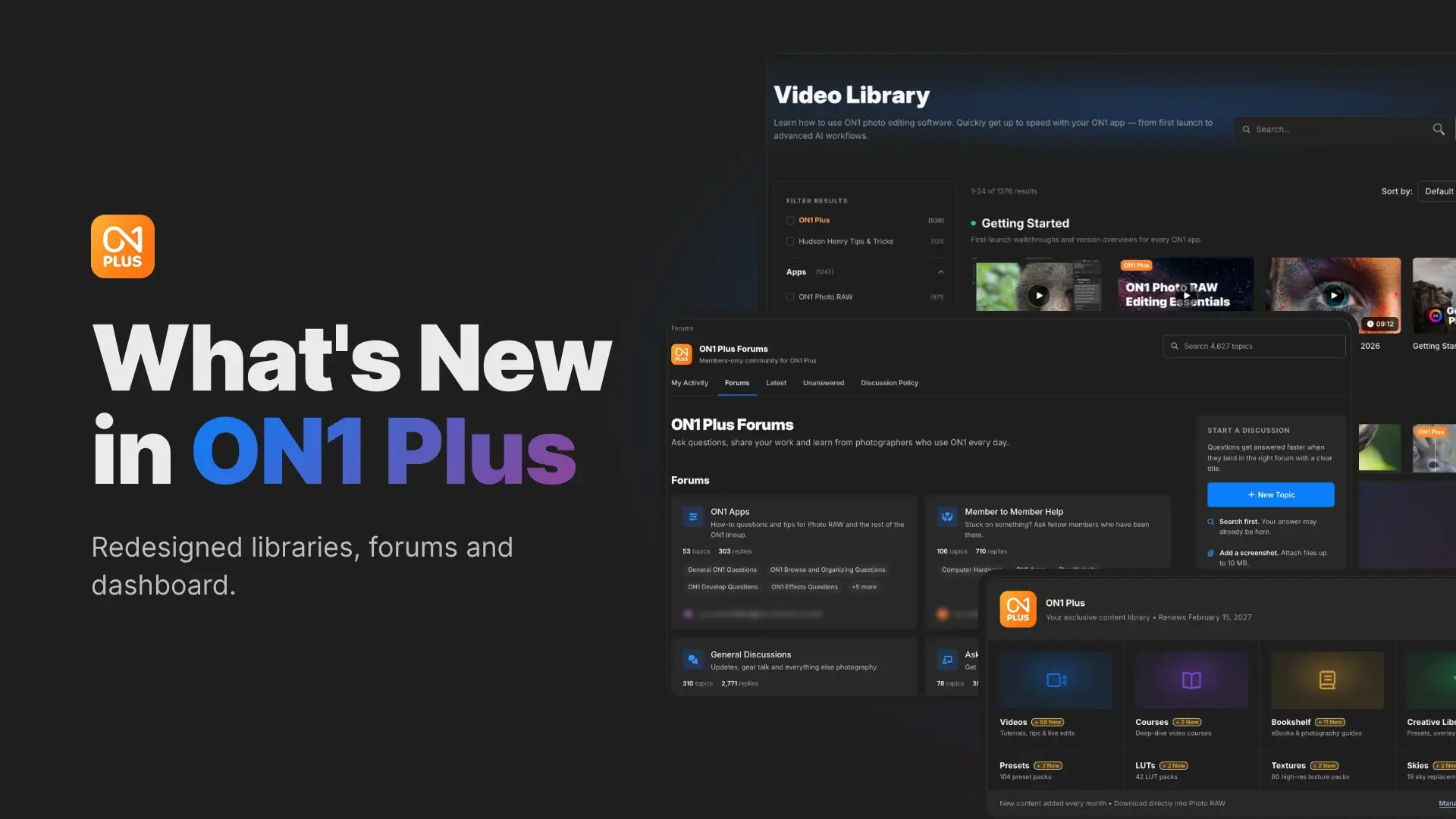
We’ve been busy updating the member experience for ON1 Plus, from the video library to revamping the forums. Your new ON1 Plus dashboard now shows you what’s new when you sign in. Videos, courses, guides and creative extras are easier to search, filter and save. The forums, the Community Gallery and your member profile also work better together.
Here’s what changed and how to make the most of it.
Your Dashboard Shows What’s New
Your ON1 account dashboard now has an ON1 Plus block with four tiles for Videos, Courses, the Bookshelf and the Creative Library. A badge on each tile shows how many new items have arrived in ON1 Plus in the last 30 days. A second row takes you straight to Presets, LUTs, Textures and Skies.
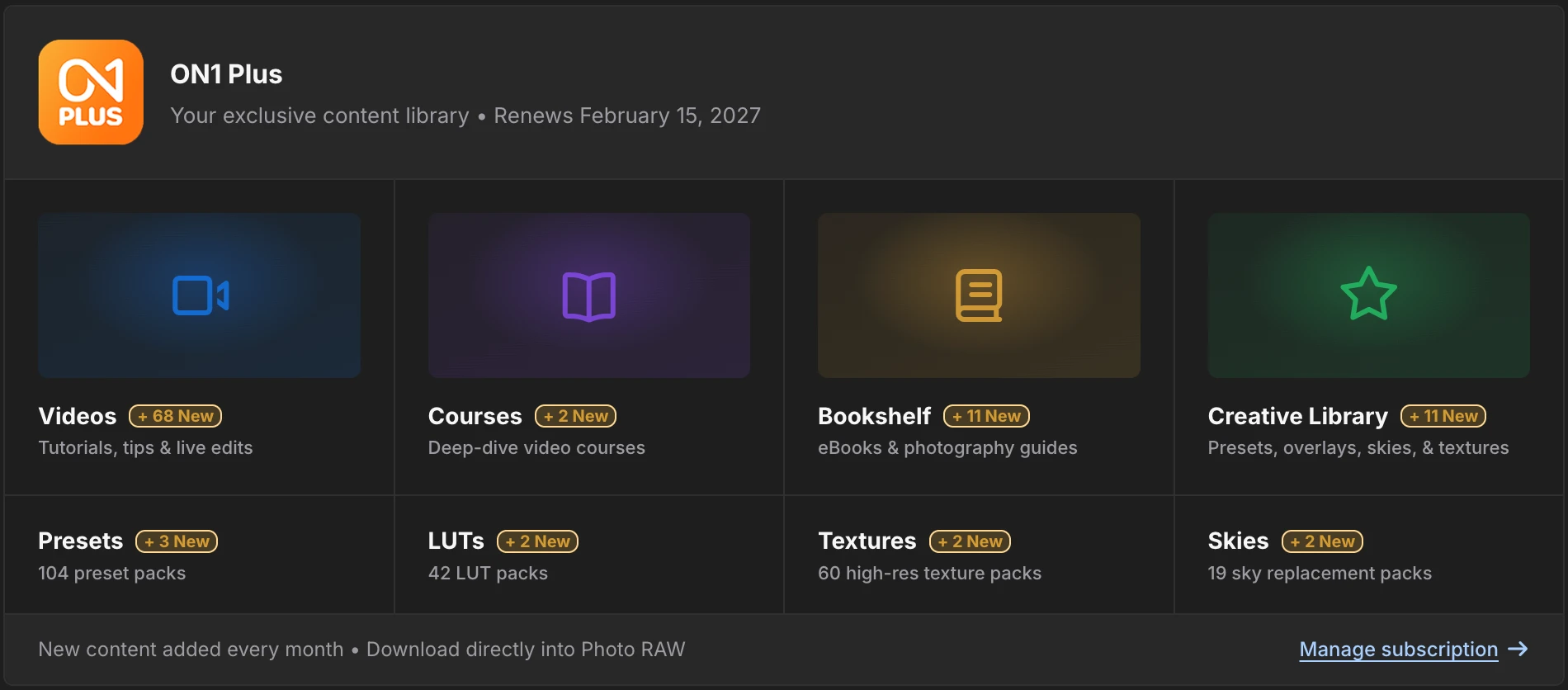
Below that, rows for New Videos, New Video Courses, New in the Bookshelf, New Creative Extras and Latest News show what’s been added. A “From the Forums” panel lists the topics you follow and the latest discussions, and Upcoming Events shows what’s next on the calendar. All of your favorited videos and creative extras have their own rows, ready for your next editing session, and your account details with helpful resources sit at the bottom of the page.
Four Libraries, One Place to Learn
The Video Library, Video Courses, the Bookshelf and the Creative Library now share a tab bar at the top of each page, so you can move between them in one click. Each library has search, and you can favorite any video or creative extra and find it again under My Favorites.
The Video Library
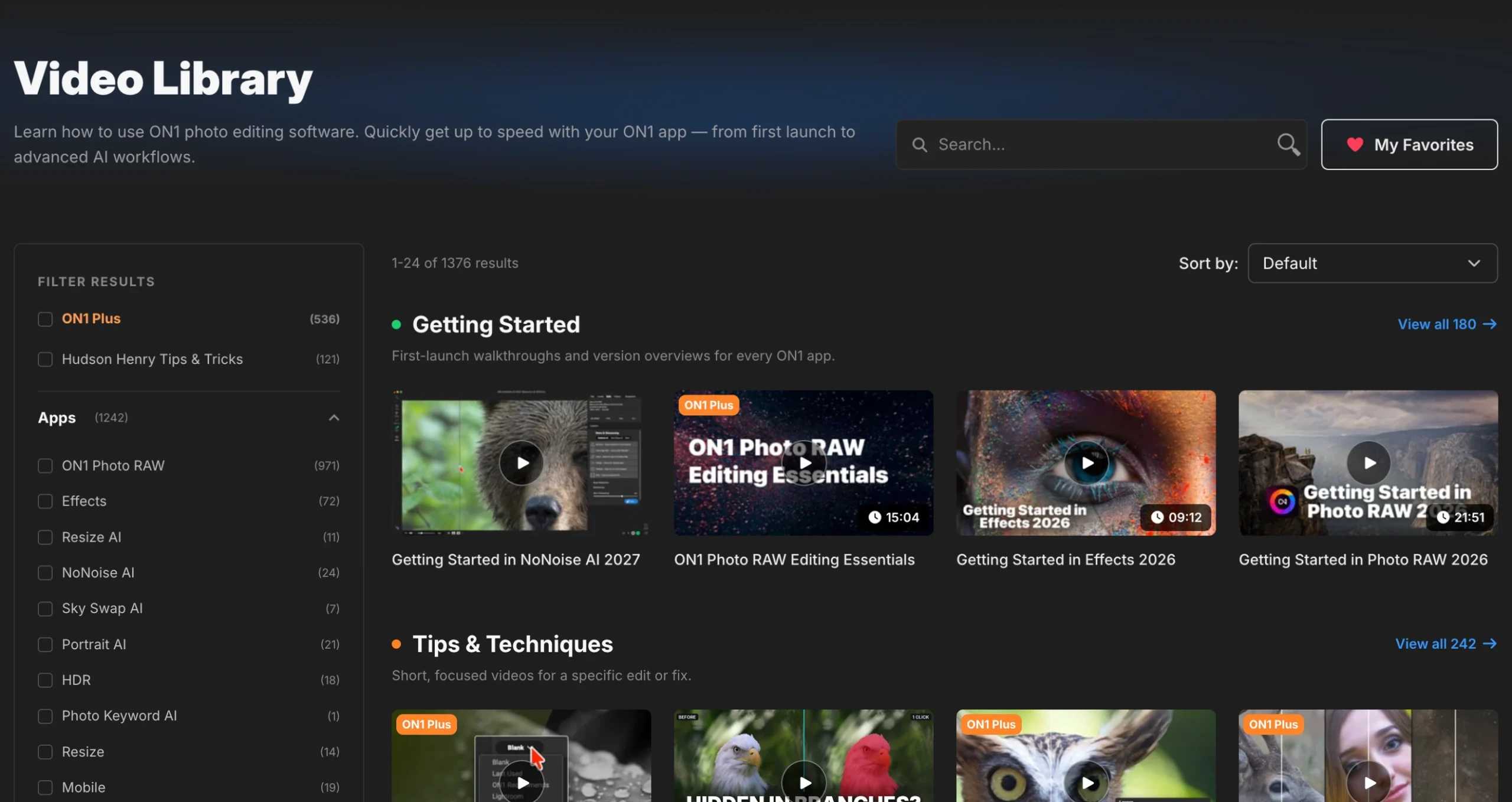
The Video Library holds all of the ON1 tutorial videos, organized into rows for Getting Started, Tips & Techniques, Module Walkthroughs, Webinars & Live Edits and the most-watched videos of the last 90 days. Every filter now sits open in the sidebar, with a count beside each option. You can narrow by app, version, module, genre, technique and skill level, then sort by newest, most popular or recommended.
Video Courses
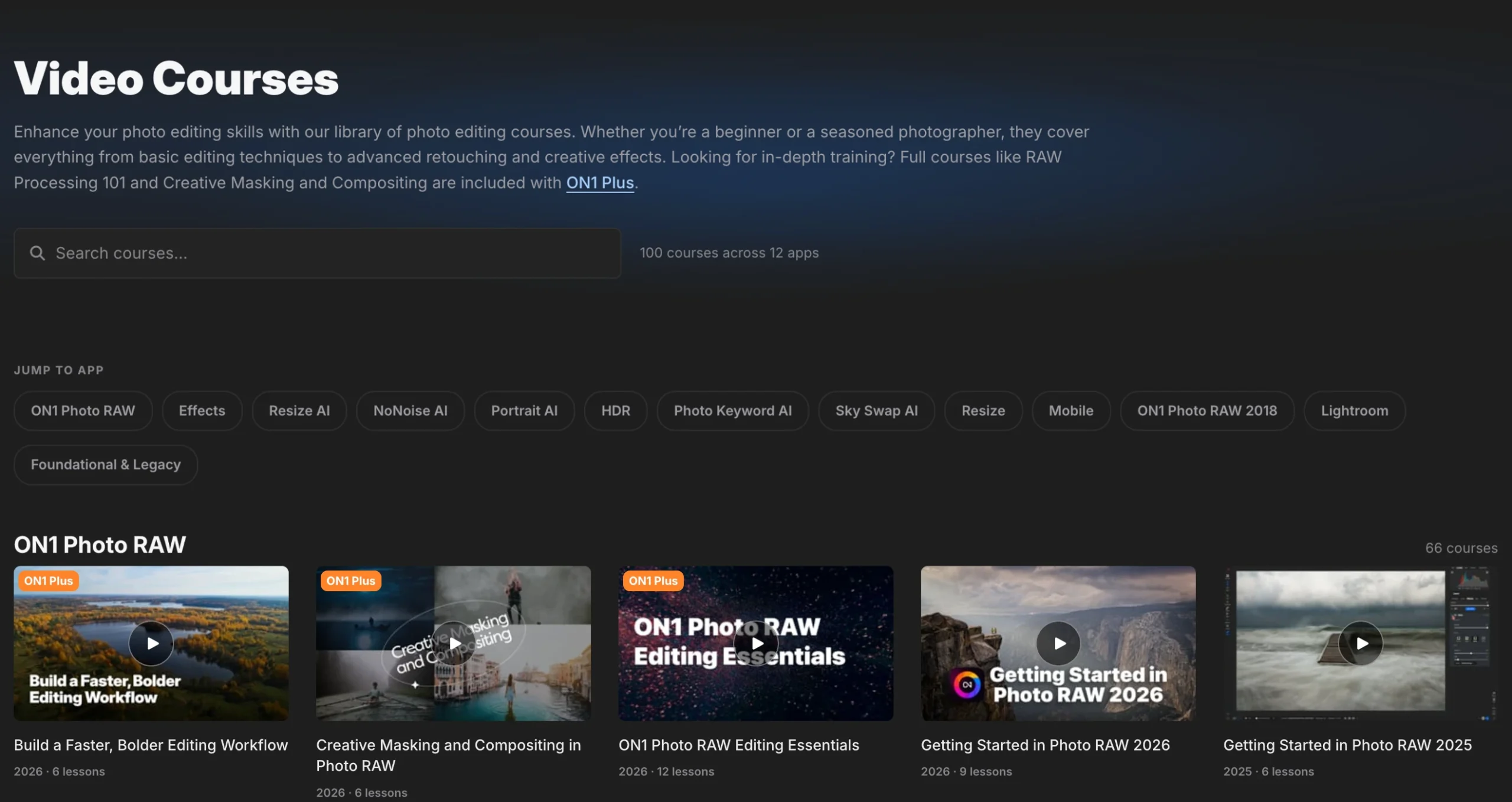
Video Courses now groups courses by app, from ON1 Photo RAW and Effects to Resize AI, NoNoise AI and Portrait AI. Jump-to-app buttons and a course search take you straight to what you want, and older courses have their own Foundational & Legacy section.
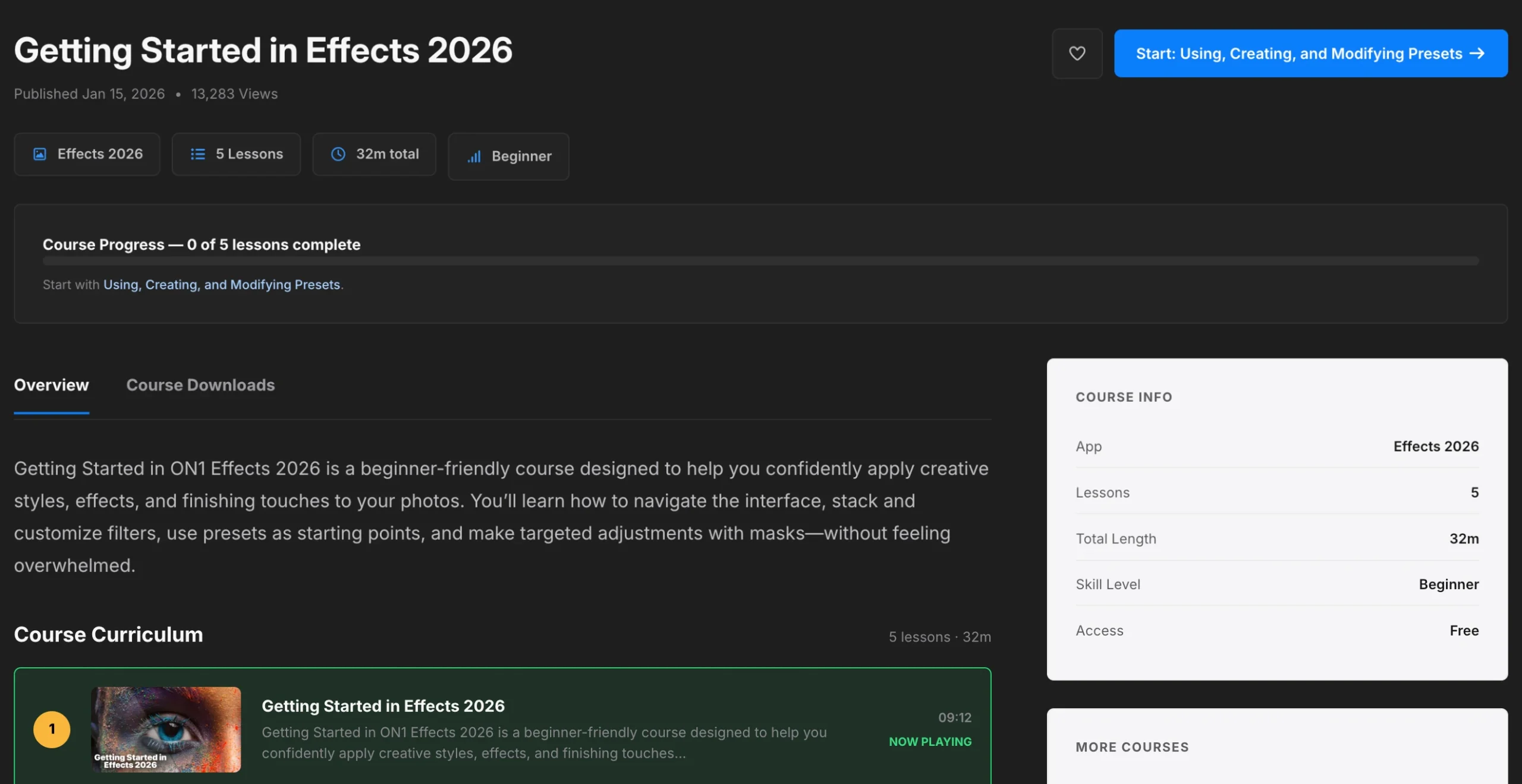
Each course page opens with the course intro video and a button that starts your first lesson. Quick facts show the app, the number of lessons, the total length and the skill level. A progress bar tracks how many lessons you’ve finished, and the numbered curriculum shows exactly where you are. Course downloads, including practice files where a course has them, have their own tab, and the sidebar introduces the instructor and suggests related courses.
Watching a lesson
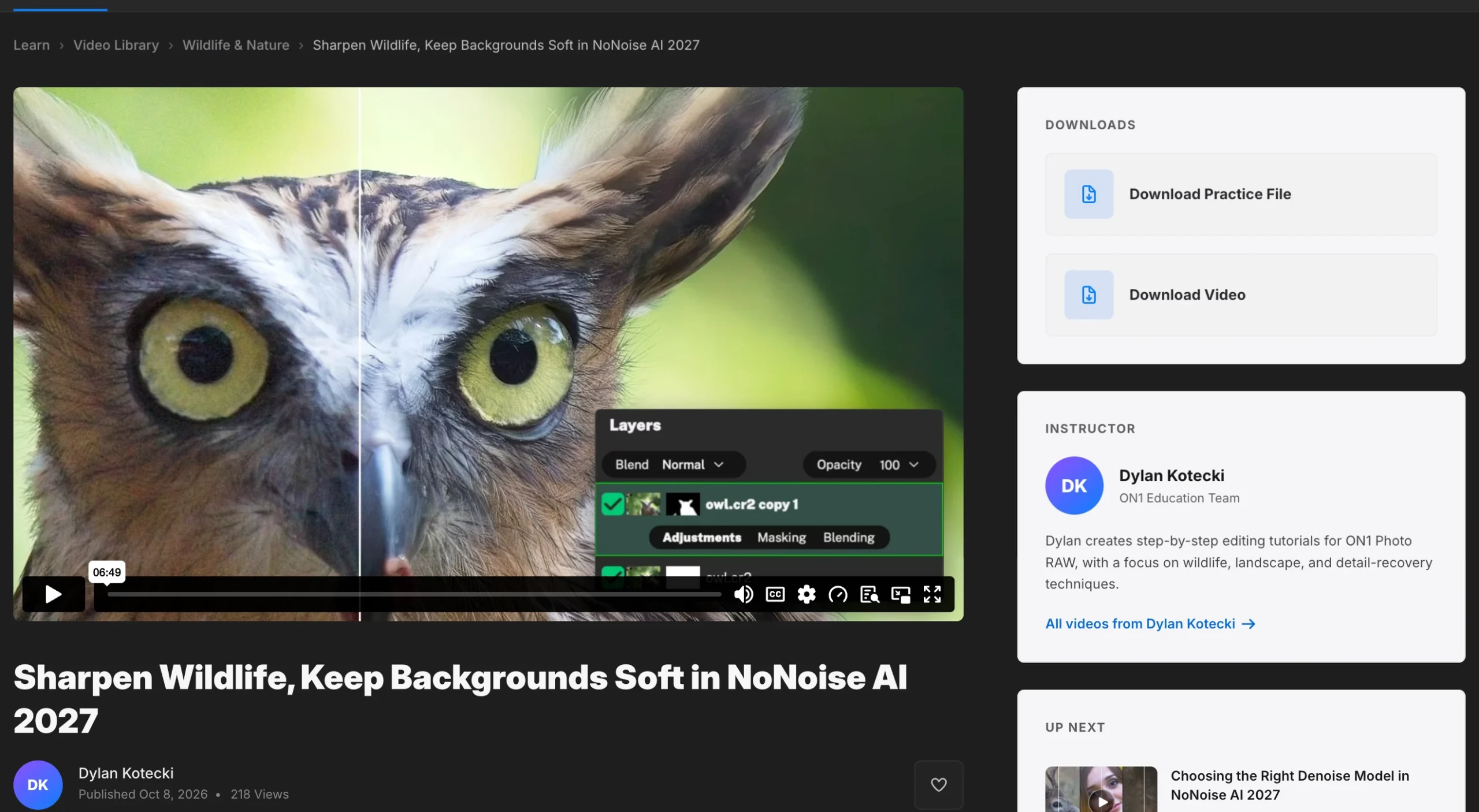
Video pages now keep everything you need beside the player. The right hand side of the page includes links for practice files and video downloads (if available), an instructor card with a short bio and a link to all of their videos, and an Up Next list of related tutorials. Lessons that belong to a course show the full curriculum with the current lesson marked as now playing, and you can mark each one as watched or add it to your favorites. Comments sit below every video, so you can ask a question or share any feedback you have or what worked for you.
The Bookshelf, Organized Like a Library
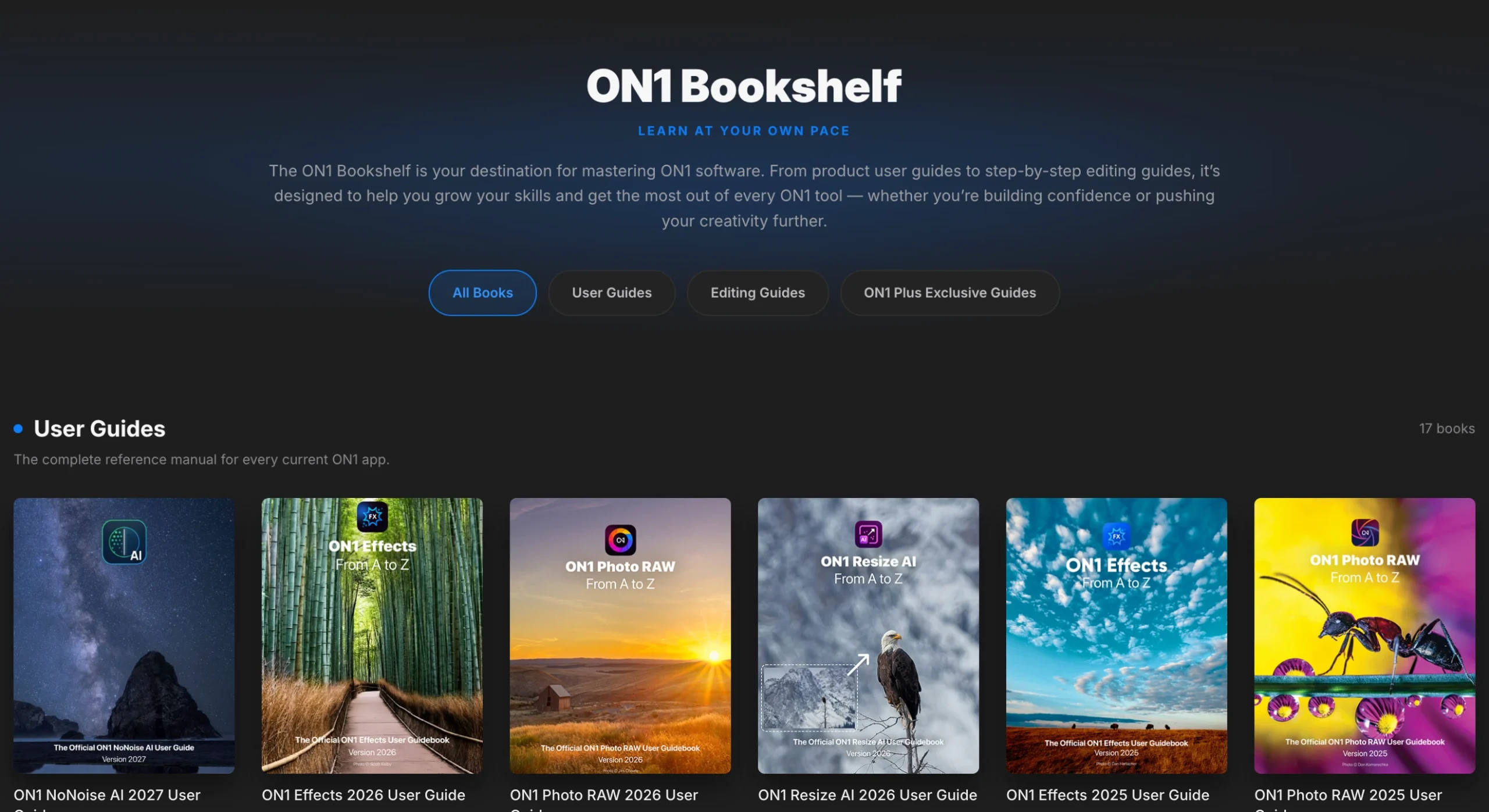
The Bookshelf is now organized into User Guides, Editing Guides and ON1 Plus Exclusive Guides, with buttons at the top to show one category at a time. Every cover appears at the same, so it’s easy to scan and find the guides important to you. Each guide has its own page with a large cover, a Read on the Web button and a Download PDF button, along with the publish date, view count and important tags describing who the book is geared to.
A Creative Library You Can Browse by Type
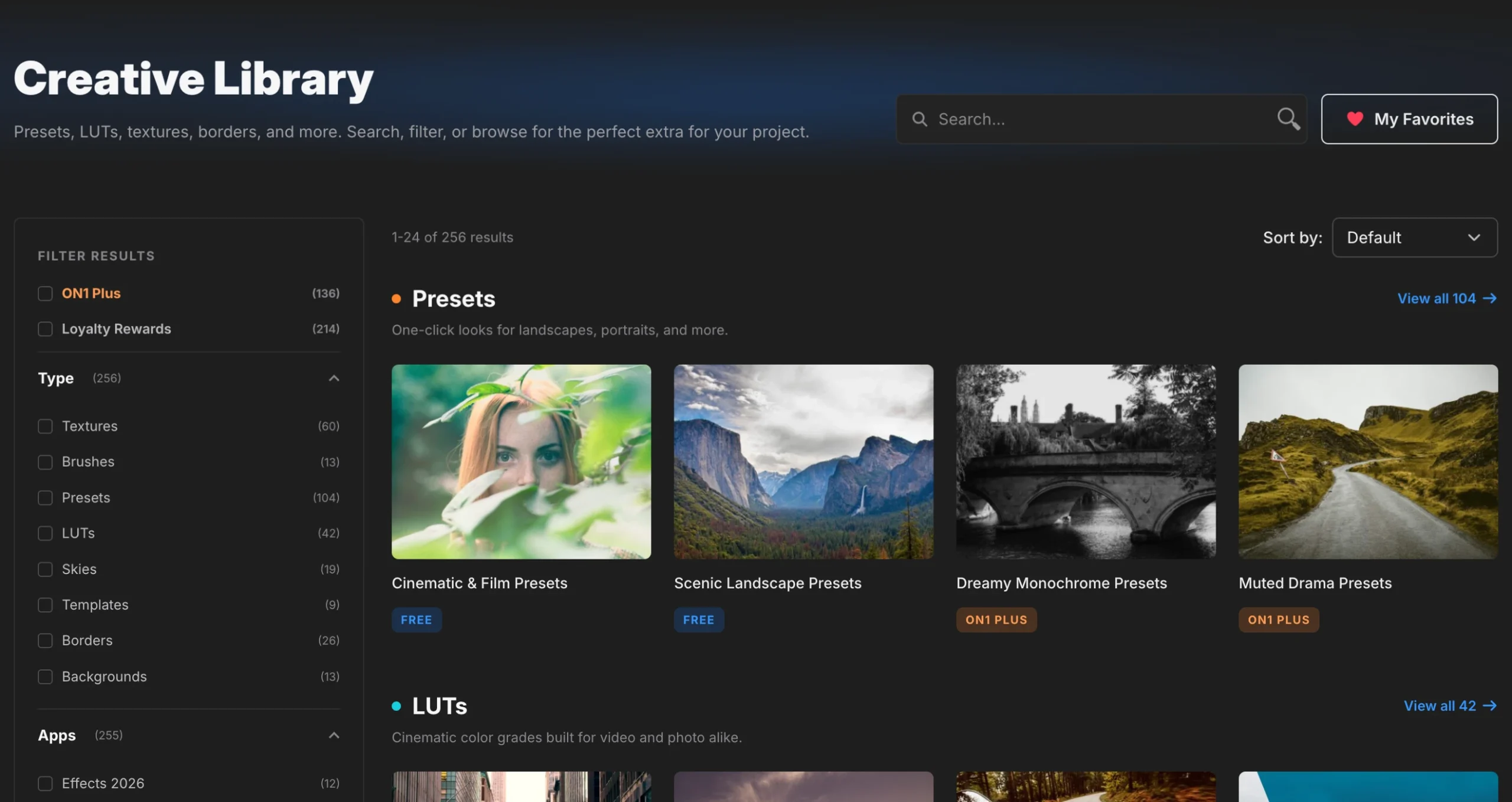
The Creative Library now groups all of the ON1 extras into rows for Presets, LUTs, Textures, Borders, Templates, Skies, Brushes and Backgrounds. Labels show at a glance which extras come with ON1 Plus and which are free. You can still filter by type, app, season and genre, or show only ON1 Plus or Loyalty Rewards items. A Most Popular Creative Extras row shows what members are downloading.
A Forum Built Around Getting Answers
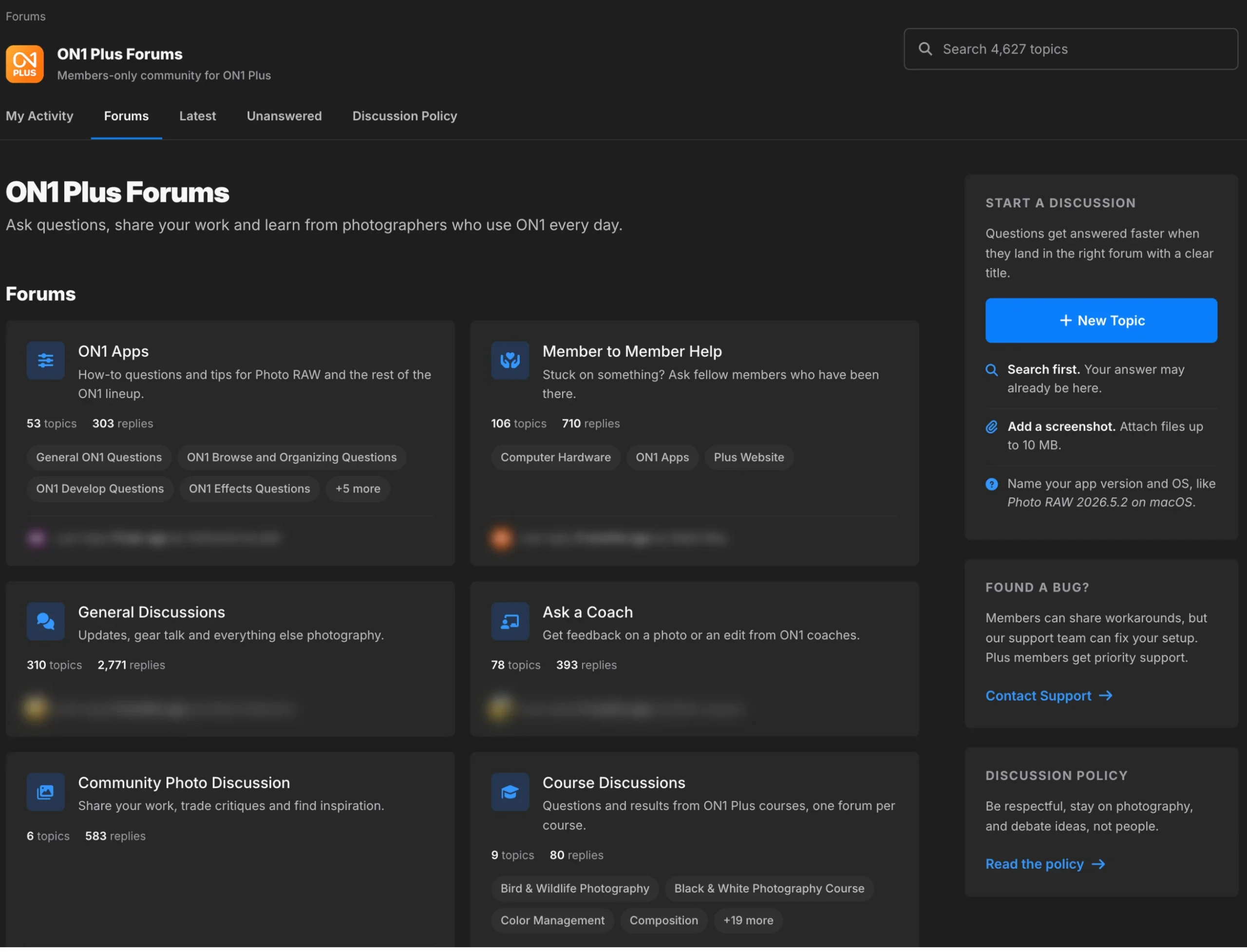
The ON1 Plus Forums are where members help each other, from fixing a stubborn mask to choosing the right noise reduction model. We completely gutted the old ON1 Plus forums in this redesign. The new forums make it easier to find the right conversation and see when a question has been solved.
See the active conversations first
The forum home now opens with the three top level forums, each shown as a card with a short description, its sub-forums. A list of the latest discussions sits below the cards.
Find your way around faster
New tabs let you jump straight to what you need:
- My Activity: your profile, with the topics you started, your replies, and the topics you’ve saved or followed
- Forums: the three main forums
- Latest: the newest posts across every forum
- Unanswered: questions still waiting for a reply, a good place to share what you know
A search box covers every topic in the forums. The sidebar has a New Topic button, quick tips for getting a faster answer and a “Found a bug?” link that goes straight to ON1 Support.
Topics that are easier to read
Each topic page now shows member avatars and an “Original poster” tag, so you can follow who asked and who answered. Buttons at the top let you follow the topic, save it or copy its link, and Jump to latest takes you to the newest post in a long thread. Reply and Quote sit on every post, and the sidebar suggests more topics from the same forum.
Answered questions stand out
When a reply solves the problem, the member who asked, or a forum moderator, can mark it as the answer. The topic then shows a green “Answered” box at the top with the solution quoted, so the next photographer with the same question finds the fix right away. You can also mark any reply as helpful.
Better tools for posting
The New Topic and Reply forms now include a formatting toolbar and drag-and-drop attachments, which makes sharing a screenshot or an example image much easier. A character counter keeps topic titles to 80 characters, so they read cleanly in the topic list. “Email me when someone replies” is turned on by default, so you won’t miss an answer to your question.
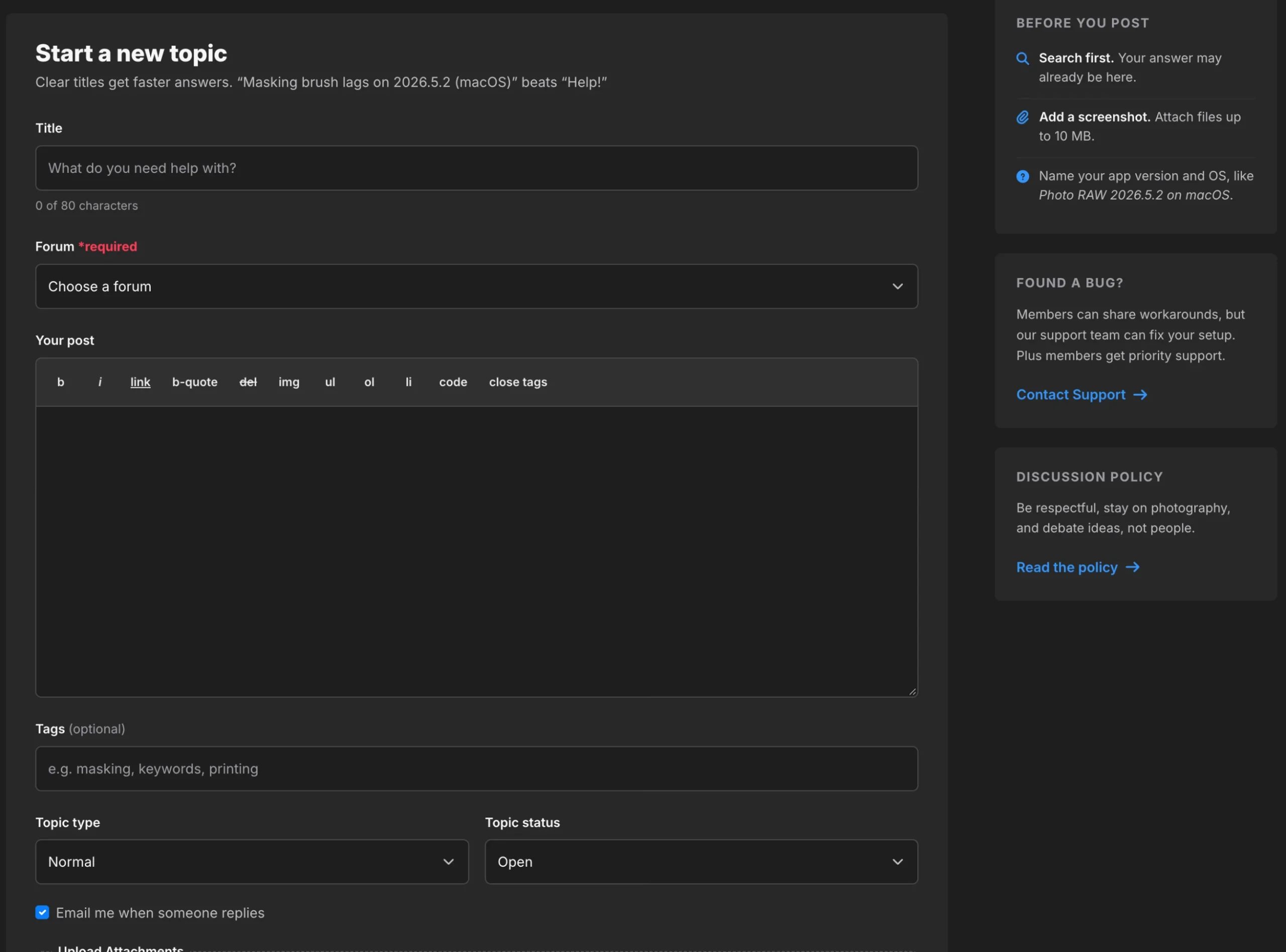
To keep conversations helpful and respectful, our Discussion Policy now has its own tab in the forums. Give it a read before you post.
One Profile Across ON1
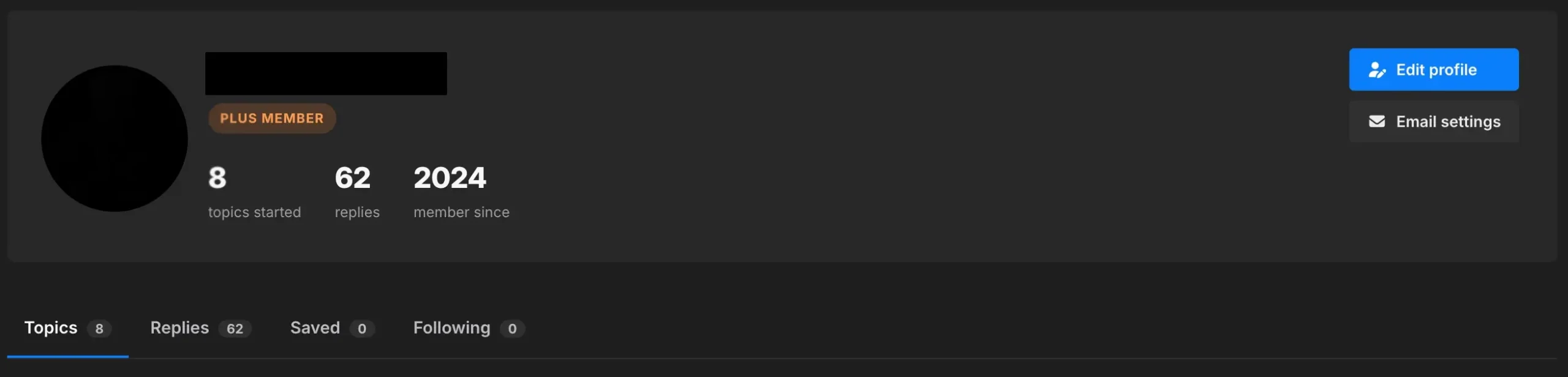
Your forum profile (under My Activity) now shows your photo, a Plus Member badge and your stats: topics started, replies and the year you joined. Tabs show your topics and replies, and your Saved and Following tabs are private and only visible to you.
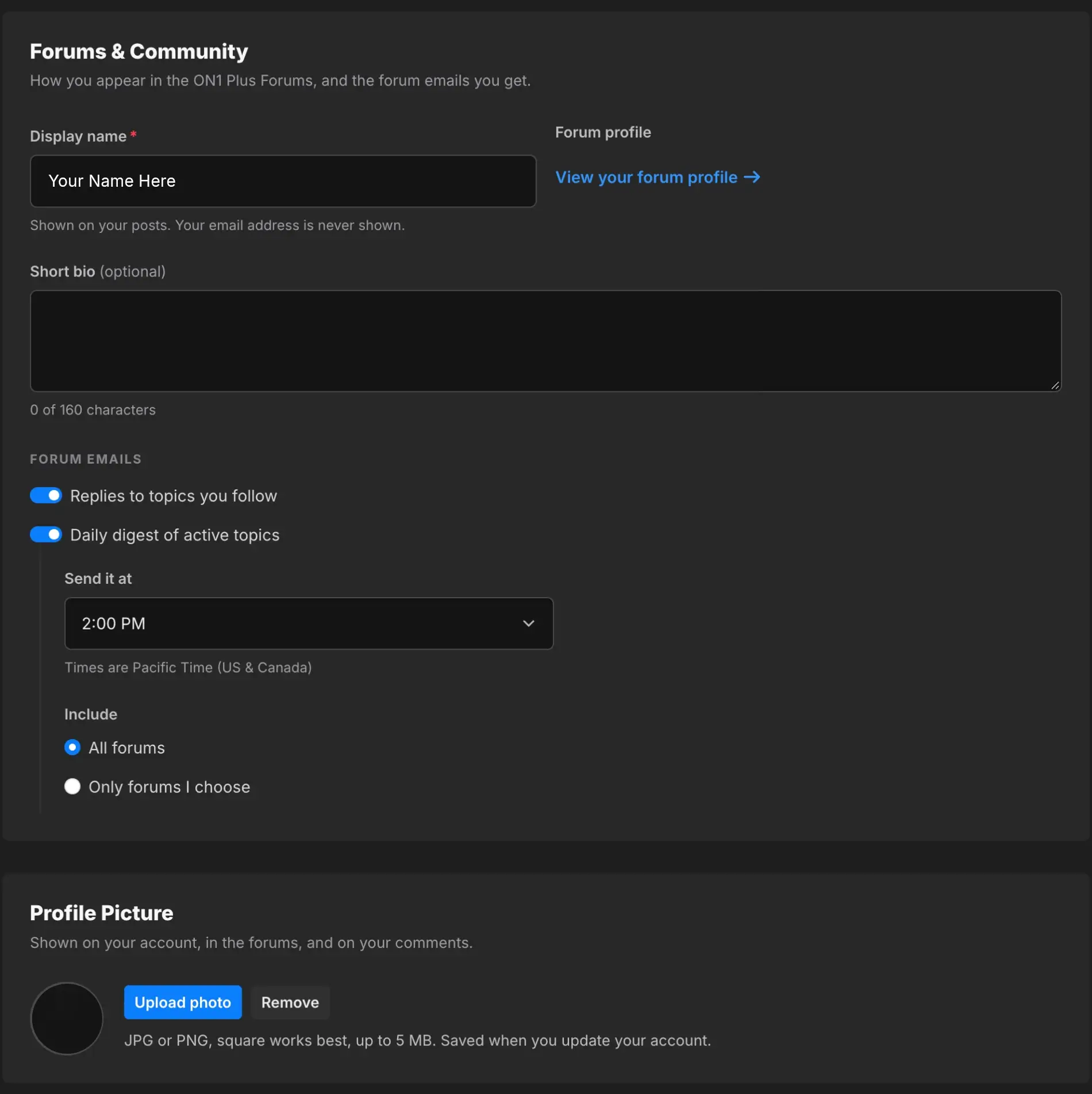
Forum settings now live in your ON1 Account Settings, in a new Forums & Community card. You manage everything in one place:
- Display name: choose how you appear on your posts. Your email address is never shown.
- Short bio: add up to 160 characters about what and how you shoot.
- Profile picture: upload your own JPG or PNG. It appears on your account, in the forums and on your comments, so you no longer need a Gravatar account.
- Reply emails: get an email when someone replies to a topic you follow.
- Daily digest: get one email a day with active topics from all forums or only the ones you choose. Pick the hour it arrives. Times are in Pacific Time (US and Canada).
These settings apply to your ON1 account everywhere, from Photo RAW to the Creative Library and the rest of the ON1 website.
A Community Gallery Worth Browsing
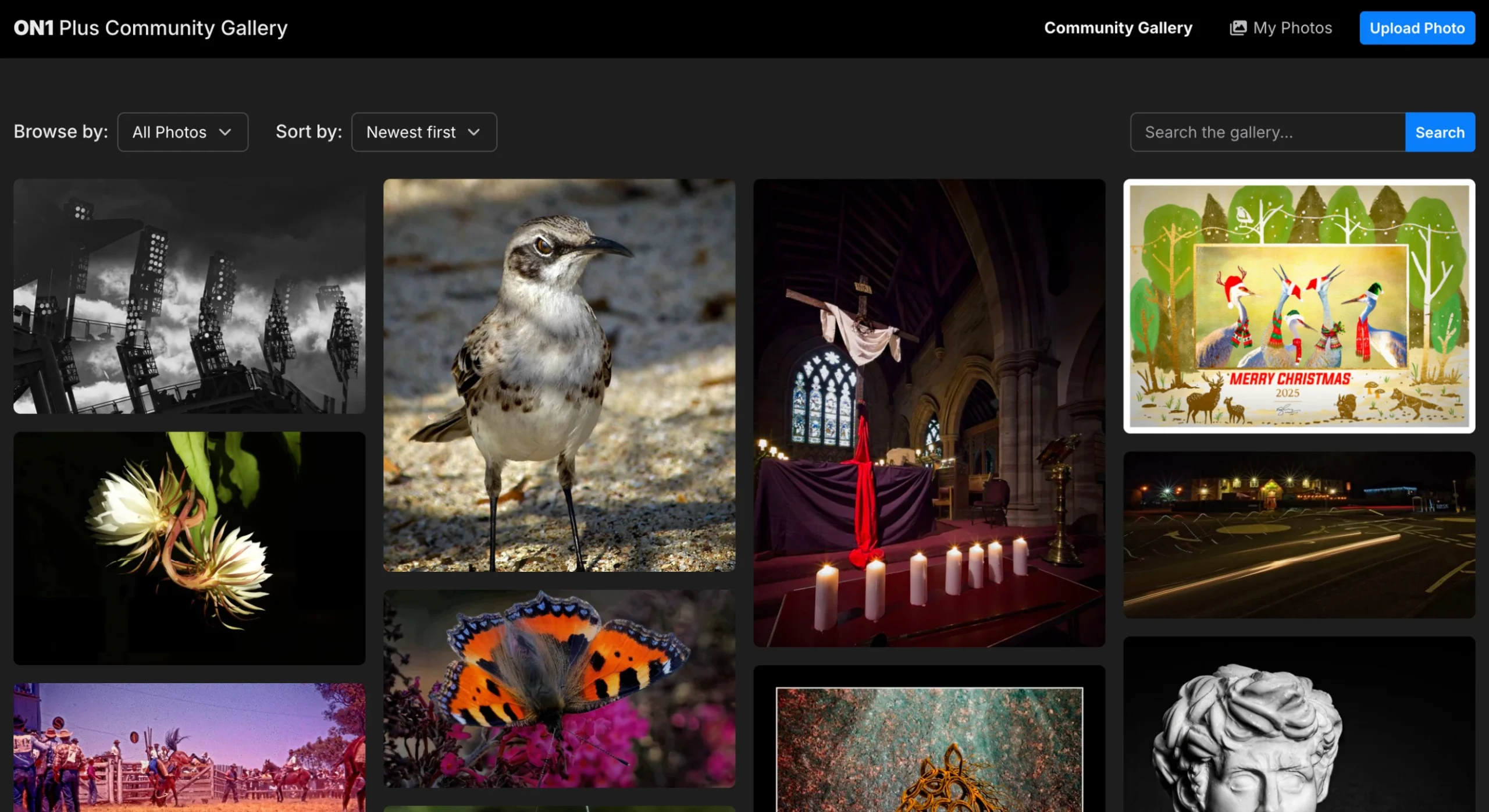
The new ON1 Plus Community Gallery has a new masonry layout that shows each photo at its natural shape. You can browse by category, sort, search and page through member work, or jump to My Photos to see your own uploads.
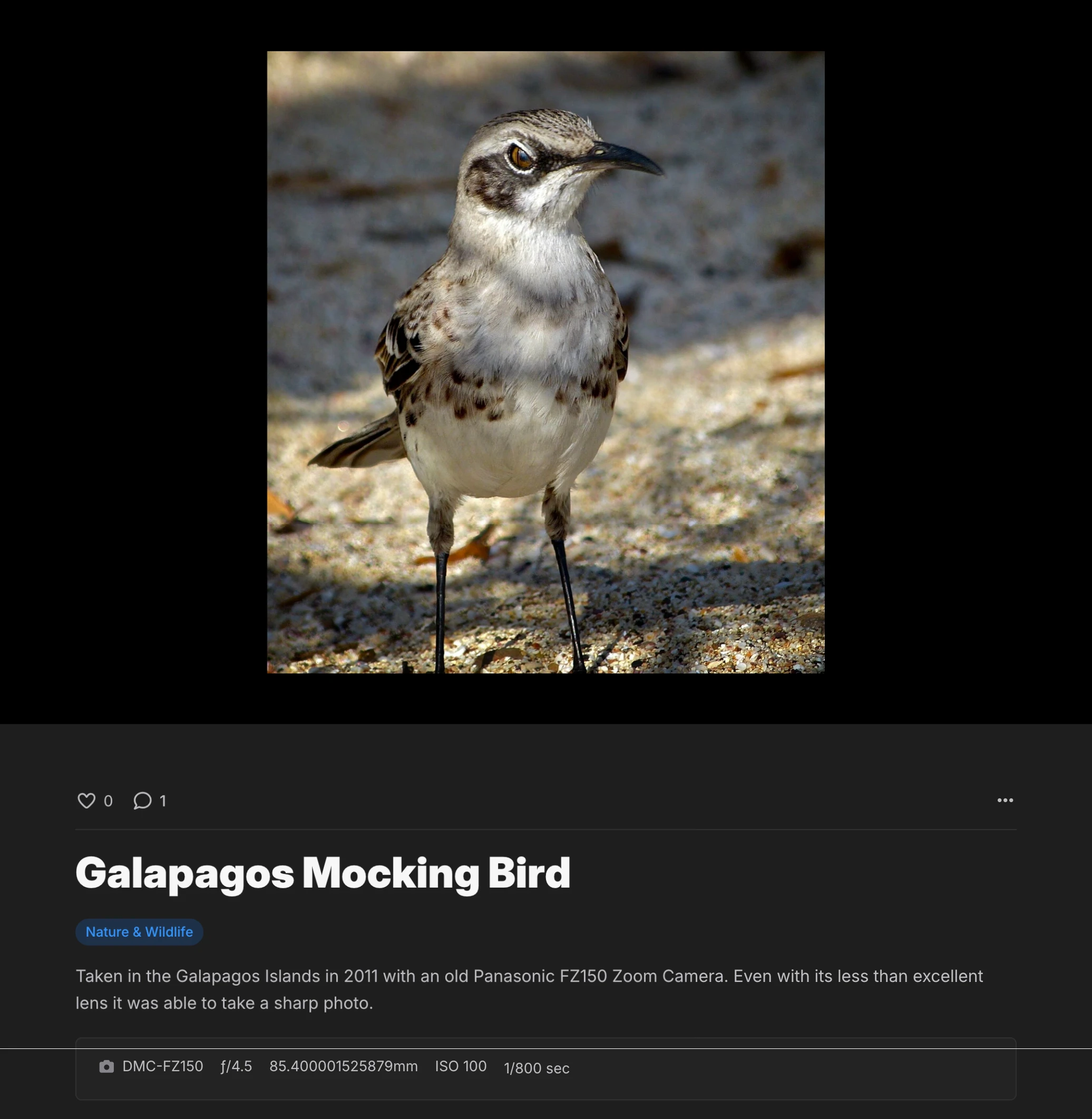
Each photo opens on its own page with the photographer’s post-processing notes, the camera settings and comments. A “More by” row leads you to more of that member’s work, and an arrow takes you to the next photo.
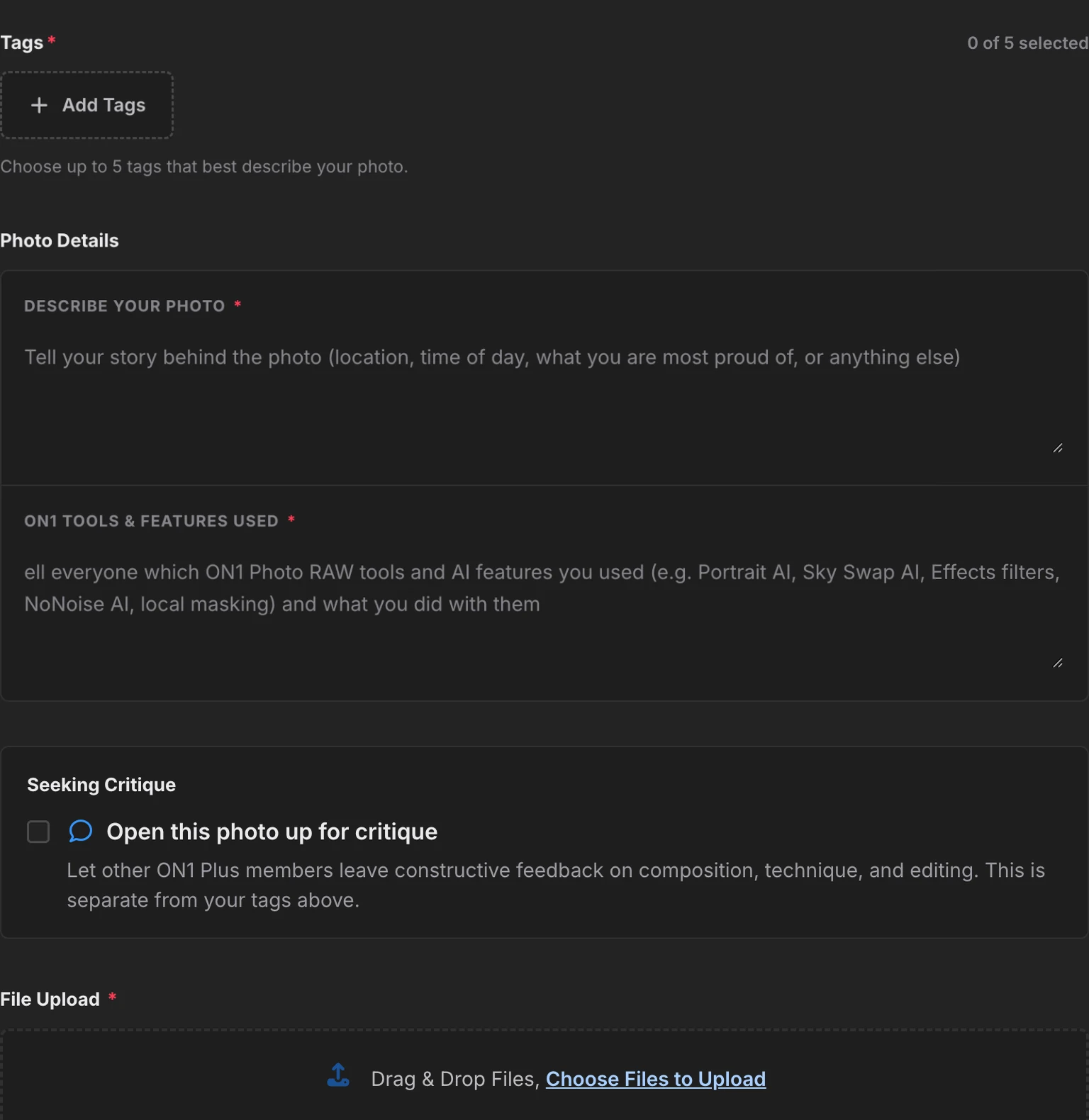
To share your own work, choose Upload Photo. Add a title and up to five tags, fill in the Photo Details with your description and post-processing notes, then drag and drop your JPEG into the form. If you’d like feedback, tick “Open this photo up for critique,” and other members will know you’re looking for their thoughts.
Light or Dark, Your Choice
The ON1 website now comes in a light theme and a dark theme. To switch, look at the far right of the menu bar at the top of any page. Just past your account menu, you’ll see a sun icon in the dark theme or a moon icon in the light theme. Click it, and the whole site changes. Your browser remembers your choice, so the forums, the libraries and the rest of on1.com look the way you like every time you come back.
Join the Conversation
If you’re already a member, sign in and take a look. Start by adding a photo and bio in Account Settings, then follow a few topics and favorite a few videos so your dashboard fills up with what you care about.
If you’re not a member yet, the full training library, the forums and the Community Gallery are part of ON1 Plus, along with exclusive presets and priority support. ON1 Plus is also included with ON1 Photo Studio. Get answers from photographers who use the same photo editing software tools you do, and share your work with people who understand what went into it.
Please review our privacy policy for information about how we use the data we collect.