What's new:RAW Processing Engine+NoNoise AINew in 2027: RAW Processing Engine, Enhanced Masking Experience, NoNoise AI, Tack Sharp AI Deblurring, Enhanced Brilliance AI, AI Culling Assistant in MAX, Light Theme, Faster AI Tools, and much more.
ON1 Photo RAW 2027Guided tourStep 1 of 7MAXNew in 2027
Open the Culling Assistant
New in MAX 2027: the Culling Assistant helps you get from a full card to your keepers fast. It lives right in Browse.
1. Analyze
Tell the assistant what to look for, then let it scan the whole folder.
2. Review
Similar shots are now grouped and marked, so you only compare photos that belong together.
Review a Group
Click Similar to step through each group in Compare view, one group at a time.
3. Organize
Finish the shoot by applying an action to every Kept or Rejected photo at once.
The Loupe Pane
New in 2027: the Loupe gives you a magnified look at the selected photo without opening it, like a loupe on a light table.
Loupe Modes
Pick the view that suits what you shoot.
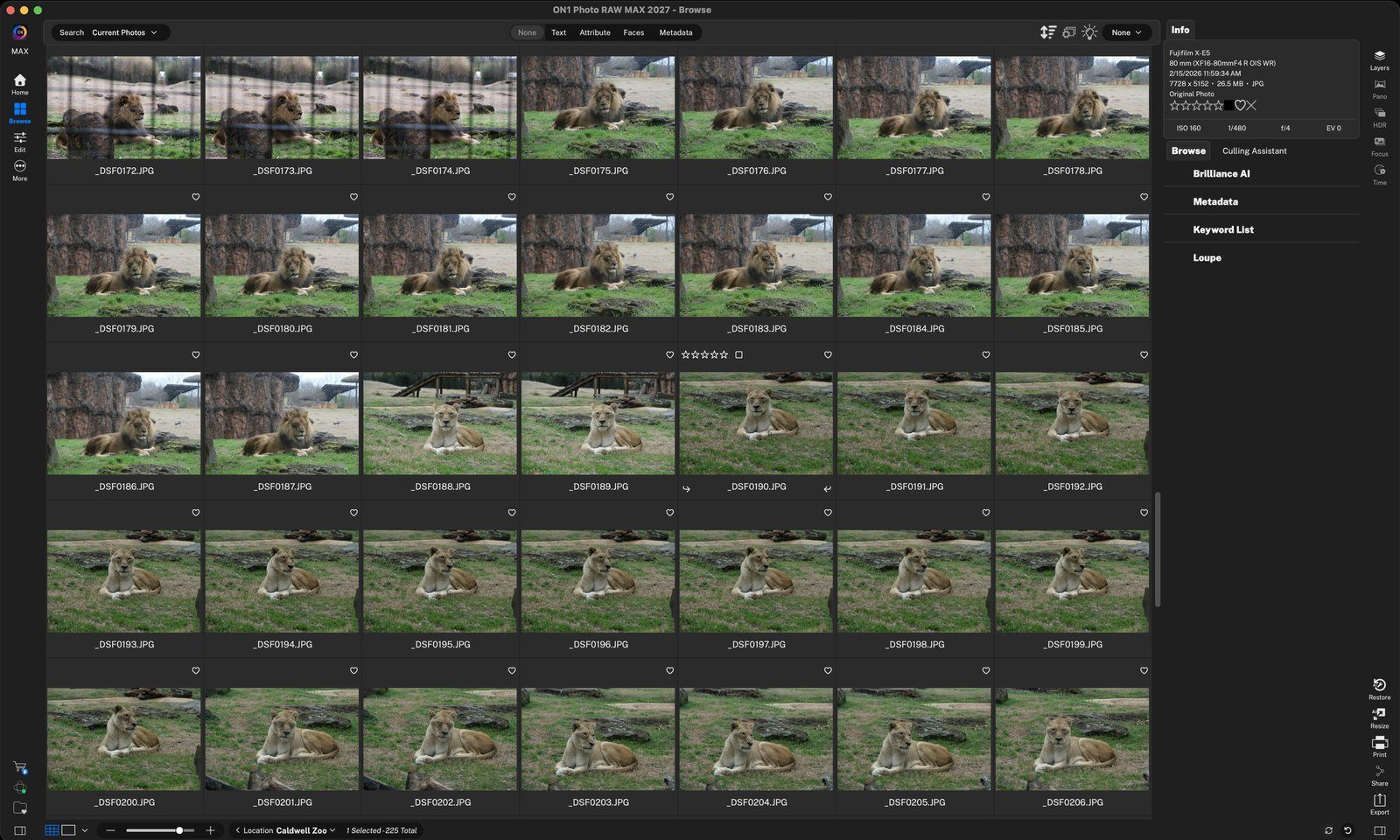
Click Culling AssistantWith your shoot open in Browse, click the Culling Assistant tab in the right pane. Click anywhere to continue
Choose what to checkGroup Similar stacks look-alike shots. Detect Subject Focus flags soft photos and Detect Eyes Closed finds blinks. Pick a Session Type, or fine-tune the sliders. Click anywhere to continue
Session TypePick a preset, or choose Custom to set how similar shots must be, the time between them and the group size. Include Subfolders scans folders inside too. Click anywhere to continue
Click AnalyzeThe assistant scans every photo in the folder. Click anywhere to continue
Groups and keepersEach photo shows its place in a group (1/4, 2/4…) and a green check when it's a keeper. Click anywhere to continue
Pick a category to reviewStep through Similar, Unique, Out of Focus, Eyes Closed, Kept, Rejected and Not Reviewed. Press R to switch a photo between Keep and Reject. Click anywhere to continue
Step through groupsUse the arrows to move between groups. The counts show photos, groups, reviewed and kept. Click anywhere to continue
Keep or rejectClick the badge, or press R, to switch a frame between Keep ✓ and Reject ✗. This one has its eyes closed. Click anywhere to continue
Pick an actionOpen the Kept, Rejected or All menu. Built-in actions include One Star, Disliked and Red Label for rejects. Click anywhere to continue
Add & Manage ActionsBuild your own: apply metadata, edit settings or an export preset to every photo in that state, then click Apply. Click anywhere to continue
Open LoupeClick Loupe in the right pane to expand it. Click the name again to roll it up when you don't need it. Click anywhere to continue
Subject modeZooms in on the main subject of the selected photo, here the lioness, so you can check it at a glance. Click anywhere to continue
Choose a ModeFaces shows each face at 1:1 for portraits. Subject zooms on the subject. Cursor 1:1 follows your mouse. Click anywhere to continue
Cursor 1:1Move your mouse over the selected photo and the Loupe shows that spot at 100%. A quick way to check focus and noise. Click another photo to inspect it. Click anywhere to finish
Tour complete
You analyzed a shoot with the Culling Assistant, reviewed groups, organized keepers and rejects, and checked photos up close with the Loupe pane.