

One of the most common questions photographers ask when starting with ON1 Photo RAW is: “Do I need a catalog to organize my photos?”
If you’re coming from Adobe Lightroom, this question makes sense. Lightroom relies heavily on a catalog database to manage and organize images. In Lightroom, photos must be imported into a catalog before editing can begin.
ON1 Photo RAW works differently.
Instead of forcing photographers into a single workflow, it allows you to work directly with your existing folders on disk while also supporting catalog-based organization if you want it. This flexibility is one of the biggest differences between Lightroom catalog vs folder workflow systems. Understanding how Browse and Catalog workflows work in ON1 Photo RAW will help you manage your photos more efficiently and avoid confusion like:
- Do I need a catalog?
- Why are my photos missing?
- What’s the difference between Browse and Cataloged photos?
How Photo Organization Works in ON1 Photo RAW
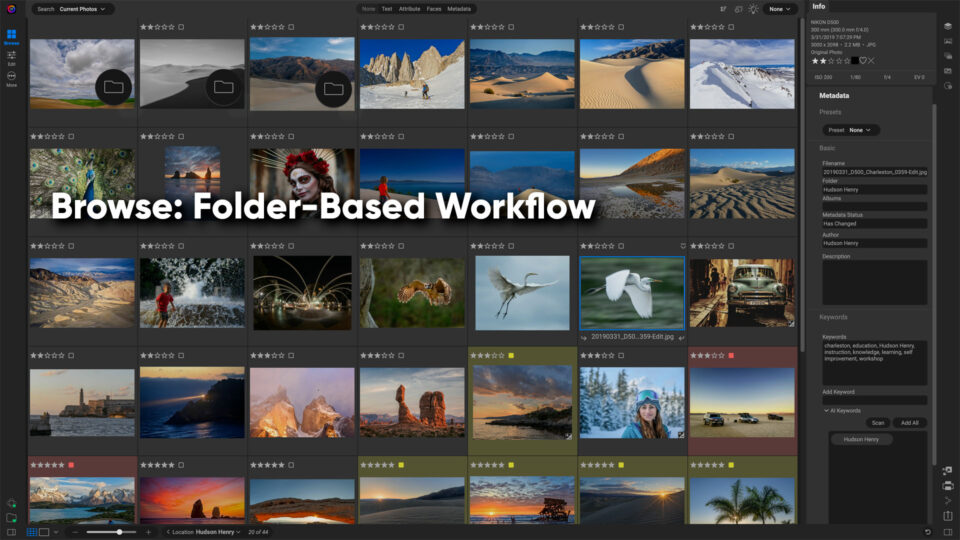
ON1 Photo RAW is designed to provide flexible photo management software for photographers. Unlike catalog-only applications, it allows photographers to work directly with their existing folder structure while still offering catalog tools for faster searching and organization.
Inside the Browse module, ON1 Photo RAW provides two primary ways to view and organize images:
- Browse — navigate folders directly on your drives
- My Catalogs — view folders that have been cataloged
These two approaches allow photographers to work with their images in the way that feels most natural, whether they prefer direct folder navigation or database-powered searching. Many photographers will even use a combination of both workflows.
Browse Mode: Editing Photos Directly from Folders
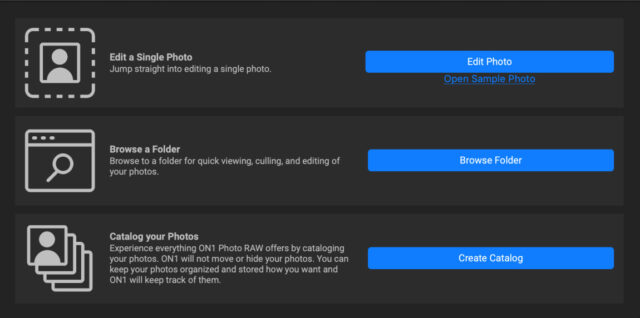
Browse mode is the simplest way to manage photos in ON1 Photo RAW. Instead of importing images into a catalog database, you can navigate directly to folders on your hard drive and begin working with them immediately. ON1 Photo RAW reads the images directly from disk and generates previews so you can view and edit photos without any import step.
This approach is often described as photo organization without a catalog, and it’s one of the reasons many photographers choose ON1 Photo RAW as a Lightroom alternative. Your folder structure remains exactly as you created it, and your photos are accessible outside the software. Edits are stored next to the original images using small .ON1 sidecar files, which store all of the editing adjustments for a complete non-destructive workflow. This design allows photographers to back up their photos easily and move folders between drives or computers without losing any of their edits. Just remember to keep the sidecars in the same folder as your images.
Cataloged Folders: Faster Searching for Large Photo Libraries
While ON1 Photo RAW works perfectly fine without having to catalog photos, it also supports cataloged folders for photographers who want faster browsing and searching. When a folder is cataloged, ON1 Photo RAW creates preview files and metadata indexes for the photos inside that folder. This allows the software to browse and search those images much faster.
Cataloging is especially helpful when working with very large libraries because it enables features like searching by: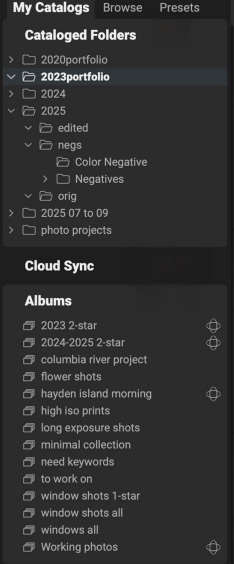
- keyword
- rating
- color label
- capture date
- camera or lens
For example, wedding photographers or event photographers who manage hundreds of thousands of images often catalog their main archive so they can locate photos quickly. It’s important to note that folders are cataloged, not individual photos. The original image files still remain in their existing folders on disk.
How Cataloged Folders Update Automatically
When a folder is cataloged, ON1 Photo RAW continues to monitor it for changes. If new photos are added to that folder, ON1 can update the catalog and generate previews for those images. This ensures the catalog stays synchronized with the actual contents of the folder. Because ON1 Photo RAW always keeps the original files in their folders on disk, photographers maintain full control over their image organization. This hybrid approach gives photographers the flexibility of a folder workflow with the performance benefits of a catalog database.
Lightroom Catalog vs Folder Workflow
Many photographers researching ON1 Photo RAW are comparing Lightroom catalog vs folder system workflows. Lightroom requires photos to be imported into a catalog database before editing can begin. The catalog keeps track of file locations, edits, and metadata.
ON1 Photo RAW offers more flexibility because it allows photographers to work directly with folders on disk without importing images first.
Here is a simple comparison.
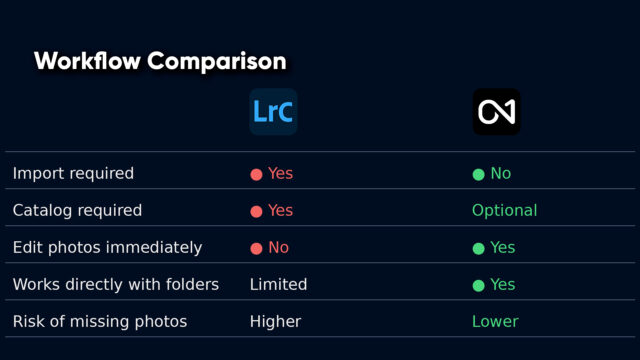
Because ON1 Photo RAW supports photo organization without a catalog, photographers can start editing immediately while keeping their files organized exactly how they want on their hard drive.
Why Do Photos Sometimes Appear Missing?
Another common question photographers ask is:
“Why are my photos missing?”
This usually happens when folders or files are moved outside the software. If the catalog no longer knows where a folder is located, it may temporarily show those images as missing. In ON1 Photo RAW, this issue is easy to fix in most cases. This is because the software can read images directly from folders on disk, navigating to the new folder location will allow ON1 to locate the photos again. This is another advantage of a folder-based workflow, since your images remain accessible through your operating system even if the catalog reference changes.
Do You Need a Catalog in ON1 Photo RAW?
The short answer is no. You can use ON1 Photo RAW entirely with a folder-based workflow if you prefer. Many photographers choose this approach because it allows them to organize photos exactly as they want on their drives. However, catalogs can still be helpful if you want faster searching across large image libraries or advanced filtering options. ON1 Photo RAW supports both workflows so photographers are free to choose the approach that best fits their needs.
A Recommended Workflow for Most Photographers
Many photographers find the best results by combining both approaches.
A common setup might include:
- using Browse mode for everyday editing
- cataloging large archive folders
- using catalog search tools to locate images quickly
This approach combines the flexibility of a folder-based workflow with the speed of catalog searching.
Final Thoughts
Understanding the difference between Browse and Catalog workflows removes one of the biggest points of confusion for photographers new to ON1 Photo RAW. Remember, unlike traditional catalog-only software like Lightroom, ON1 Photo RAW allows photographers to organize photos using either a folder-based workflow and/or a catalog system.
Whether you prefer photo organization without a catalog or want the performance benefits of indexed searching, ON1 Photo RAW gives photographers the flexibility to manage their images in the way that works best for them. Learn more about the photo organization features in ON1 Photo RAW.
40 comments on “Browse vs Cataloged Workflows in ON1 Photo RAW”
On March 29, 2026 at 3:35 am Alastair Goldman wrote:
Very useful – but I could do with more details. How much memory (hard drive) does cataloguing take up? Is it easily reversed to free up the HD space? With cataloguing is it correct that when going to edit a photo previously edited (eg with denoise) th image will load much faster?
On April 3, 2026 at 6:49 am Michael McWhorter replied:
I have the same questions. Could someone please let us know?
On April 3, 2026 at 7:58 am Jonathan Smith replied:
I’d also like to know things about the amount of space previews and ON1 files take up since it REALLY wants to install on my main drive which is an SSD with limited space.
On April 3, 2026 at 1:05 pm Patrick Smith replied:
It will depend on your photo library. The sidecar files are pretty small because they only hold instructions for each edit. If you are creating layered raw files and psd files those can get very big fast.
On April 3, 2026 at 12:28 pm David Price replied:
I am an ON1 user and not an expert.
When the catalogue does it’s stuff it stores an image of the Raw File, as you have edited it. The image generally opens quickly. When you edit it some more, then return to Browse to ‘save your work’. The catalogue updates it’self and stores a new image. You raw file is never altered.
However, none of my ON1 processed images contain Denoise edits, as that is software made by a rival company.
On April 3, 2026 at 6:52 am Bernard Claro wrote:
Hi
Very useful but I don’t find answer to the following problem :
I can spend a pretty long time to load pictures from my Fuji XT5. My computer is Mac Book air M2 2022. It’s recent
All my folders are in cataloged folders. Will be faster if I edit from Browse
Thanks
On April 3, 2026 at 1:03 pm Patrick Smith replied:
Get in touch with our Tech Support team, they will be able to diagnose what exactly is happening.
On April 3, 2026 at 6:53 am Francois Christen wrote:
I appreciate that the ON1 has pointed the difference between Browse and Catalogued Workflows, but I would ask ON1 to give us more information about how to best create a (many?) catalogue. As a light user of ON1, I find it’s interface difficult to use and I don’t find the tutorials useful because the instructors go through the material too quickly. By the time I find the right tool on the interface the instructor has moved on. Perhaps ON1 could develop different pedagogical tools to help beginner users.
On April 3, 2026 at 7:56 am Jonathan Smith replied:
Add me to that sentiment!
Finding the tools and some of the ways they work are confusing to a Lightroom user.
On April 3, 2026 at 9:13 am Carl Carlson replied:
I agree that the tutorial videos move too quickly for a beginner and, in most cases, do not cover some of the very basic functional operations needed.
On April 3, 2026 at 1:10 pm Patrick Smith replied:
Just chatted with Dylan about this. We are going to try a few things in the video. Maybe some cues to “Pause” the video in “thicker” portions of the instructions.
On April 3, 2026 at 10:36 am Gary Grubb replied:
I couldn’t agree more Francois. ON1 instructors go through their videos waaaay to fast. I can’t keep up with where they are clicking and what the heck they’re doing. They seem to think all of us already know everything about their product. I have so many questions I could ask them… I just don’t know where to begin. Here’s hoping they get the message.
On April 3, 2026 at 12:52 pm Patrick Smith replied:
I will pass this feedback along to the team.
On April 3, 2026 at 12:21 pm David Price replied:
Speaking as an ON1 User, and not as one of their experts. If you can use Lightroom, then you will find Photo Raw’s UI to be very easy to use. The two UI’s are in many ways, very similar. But as ON1 also includes Layers and lots of Effects Filters, not to mention AI Masking, etc., The UI has more functions, so is perhaps a little more complex. But then, with ON1 you get much more for your money.
There is not much to know about creating catalogues, other than select the folder/s via browse and click Catalogue. The software takes care of the rest.
What I like about ON1, is that they treat their customers as if they are adults. With Adobe Lightroom, you must use the catalogues. There is no choice. With ON1 you only have to use a Catalogue if you want to, and/or you can hybrid work as described in the article.
The Plus Training is aimed at new starters and/or experienced users. One issue is that it is not always obvious as to whether a training package is aimed at a Newbie or at an Experienced person. The experienced users already know lots, so the instructors don’t patronise them. However, the instructors go through the materials slowly, when the course is aimed at the new starters.
On April 3, 2026 at 1:08 pm Merle Becker replied:
David. I totally agree with you!! I have used ON1 for a number of yrs. and I feel as if the videos are extremely helpful. I rely on them a lot and yes keep going back to them again & again. Slow learner apparently. :). I often stop n start the video’s multiple times while running so no problems. The presenters would have to do innumerable versions of a video to match everyone’s needs. I add new photos rt into my external drive with a fairly detailed approach. The one item, (among many) that I struggle with is where are those “extra files” – on.1 where all of the edit data is? I should add that NO I am not editing hundreds of photos at one time. Encourage those having issues with speed to use the Start/Stop method and as possible download the darn video!!
On April 3, 2026 at 12:58 pm Patrick Smith replied:
Have you had a chance to take a look a the user guide? There is some good insight to how all this works in there. Here is a link.
https://www.on1.com/bookshelf/on1-photo-raw-2026-user-guide/ You should also be able to print the PDF of the user guide if needed.
On April 3, 2026 at 7:31 am LAWRENCE CHALCRAFT wrote:
One thins ON1 is missing that Light Room can do (and this is huge to me), it Light Room can create a NEW folder to export in to. ON! in it’s current version does not have that feature as far as I’ve found.
On April 3, 2026 at 12:57 pm Patrick Smith replied:
You can do this on Mac, I just confirmed. Once you hit export, under Destination in the Export dialog choose “Ask when exporting…”, then Export. Then the OS Finder window will appear where you can create a new folder and the image will get exported into that folder.
On April 3, 2026 at 8:08 am Jacques Rousseau wrote:
If don’t need catalog, then is it possible to use ON1 cloud space to keep our Folder and photo instead of storing them on an external drive out a tierce cloud provider ?
JR
On April 3, 2026 at 1:05 pm Patrick Smith replied:
Cloud sync doesnt store photos, so we dont currently have a solution for storing photos in the cloud.
On April 3, 2026 at 8:14 am Karl Nyhus wrote:
Thanks for this blog post. Always nice to see everything laid out plainly for me, complete with suggestions for best practices.
On April 3, 2026 at 8:55 am Robert Inwards wrote:
The following statement seems to be a little misleading to me:
“Edits are stored next to the original images using small .ON1 sidecar files, which store all of the editing adjustments for a complete non-destructive workflow.” While this is true during ongoing editing of an image, when I move on to editing another image and go back to the previous image I edited, the editing history is no longer there for me. If I leave On1 Photo Raw and restart to edit previously edited images the edit history is not there. In Lightroom, the edit history is always with the edited file, no matter if I start editing another image or stop and start Lightroom. I only use browse with On1 Photo Raw editing. If I used the catalog system, would the edit history be permanently connected to the image file as it is with Lightroom? It would be great if the .ON1 sidecar file would keep all the edit history with each edited file in a permanent way.
On April 3, 2026 at 1:09 pm Patrick Smith replied:
Great question, and you’re not wrong to notice that difference. The .ON1 sidecar file does store all of your edits non-destructively, so you can always return to your final edited result. What it doesn’t currently do is save the full step-by-step History panel the way Adobe Lightroom Classic does. In ON1, the History panel is more of a current session view, not a permanently stored timeline of every adjustment. So if you want to go back to re-edit, all the adjustments you made to the photo are there—just not the order of those adjustments.
Using the Cataloged workflow can help retain more state and consistency, but it still doesn’t behave exactly like Lightroom in terms of persistent history. That said, your feedback is completely valid. Having a fully saved edit history with each file is something we know some photographers want, and it’s helpful input as we continue improving the product.
On April 5, 2026 at 5:27 am David Price replied:
I know that the History Pane is seen as essential to an Adobe User.
But, ON1 has come up with a much better way of working…
…As an ON1 User, the only thing that I ever seem to use the ON1 History Pane for, is to reset Cloning Errors. To be honest, I mostly don’t use the History Pane.
…It I want to chage anything in the way that a raw file was edited. Then thanks to the Side Car Files (.On1 files), all of my edits are available and can be edited/changed. This is much easier than using a History Pane.
On April 3, 2026 at 10:38 am hicksd wrote:
Good information, but seek more detail after reading it. Exactly how do I recognize a side car file? And then I saw ‘Albums’ section and wonder how that meshes with the above. Finally I would like to read more details on how keywords are managed. Which is a better approach to finding photos? I do love the capabilities that ON1 offers us.
On April 3, 2026 at 1:17 pm Patrick Smith replied:
A sidecar file is easy to spot once you know what to look for. It sits right next to your original photo in the same folder and has the same filename, just with a different extension like .on1 (or sometimes .on1photo). So if your image is IMG_1234.CR2, you’ll see something like IMG_1234.on1 beside it—that’s where your edits are stored.
Albums are a separate concept from sidecar files. Think of Albums as a way to organize and group photos without moving them on your hard drive. The sidecar handles your edits, while Albums help you curate collections (like projects, favorites, or client sets). They work together, but serve different purposes. For keywords, ON1 lets you embed them directly into your photos’ metadata (or sidecars), which makes them searchable later. Keywords are great for long-term organization—things like locations, subjects, or client names—while Albums are better for more temporary or project-based grouping.
As for “which is better,” it’s really about using both together: keywords for powerful search and long-term organization, and Albums for quick access and workflow-based grouping.
Appreciate the kind words too—glad you’re enjoying what ON1 can do.
On April 3, 2026 at 6:46 pm johnc wrote:
Sidecar files are the probably the biggest reason I don’t use ON1. I dislike the fact that as soon as I navigate to a folder, the sidecar files start appearing like cockroaches. They also interfere with normal finder searches. I’m happy with catalogues. In Aperture, pretty much my whole library was in one file which made searching very easy.
So what I don’t see addressed in this discussion is whether the cockroaches, sorry, sidecar files are stored within the catalogue or are littered around the place as with non-catalogue use?
The other main reason for not using ON1, which also applies to Capture One, is that neither work well with film images in black and white. If you try and import a greyscale TIFF file, you get nowhere until it’s converted to a RGB image, tripling the size. So a scanned image of 165 gb expands to 460 gb . Eventually this becomes unsupportable.
On April 3, 2026 at 7:29 pm Patrick Smith replied:
On sidecar files, if you’re using ON1 in a cataloged workflow, your edits are stored inside the catalog database—not just in sidecars. The .ON1 files are there for portability so your edits travel with your photos and aren’t locked into a single catalog. If you prefer a cleaner Finder experience, you can turn off writing sidecar files in Preferences so they’re not created going forward, or hide/filter them from search results. We’ve taken this approach to give photographers more control, but we understand that if you’re coming from something like Apple Aperture, it can feel like unnecessary clutter.
Support for grayscale images was added in ON1 Photo RAW 2026, so you no longer need to convert to RGB and deal with the file size increase.
On April 4, 2026 at 5:08 pm johnc replied:
Thanks for the update. I’ll give it another look.
On April 4, 2026 at 6:50 am tim-weidenhaft wrote:
I’ve tried several times (i.e., On1 Photo Raw versions) to migrate from Lightroom to On1. I’ve always gone back to Lightroom since On1 cache folders are unmanageable. They grow quickly and consumed my hard drive(s) space and slowed down my MacBook Pro M4 to a crawl.
I so wish I could make the final leap to On1 but…
On April 4, 2026 at 8:07 am Jay Herman wrote:
I’ve used ON1 as my main photo app since 2017 and really like the flexibility of choosing to Catalog or not, and that all the files are available in the Finder. I have nearly all my photos in a single Catalog, and I like the search capabilities it gives me.
However (and this is a big however), for the last 2+ years, there has been an extremely annoying bug with cataloged photos that causes Capture Date time offsets. Seemingly at random, the capture time displayed in ON1 is offset from the actual time by 5 or 6 hours. A series of photos taken with the same camera within seconds of each other can have some that show the correct time and some that don’t, and this happens with several different cameras. I have opened at least 10 cases with ON1 support on this over the past couple years, and always get the reply that this is a known issue with no ETA for a fix.
I have also chatted with Perplexity AI about this, and they also say this is an issue others have reported with ON1 too, and there is no real workaround (except to not catalog photos).
I was an enthusiastic fan of ON1 for years, but this issue has really dampened my enthusiasm. It is difficult for me to understand why ON1 doesn’t prioritize fixing this issue. I haven’t used any other photo app that has this issue. I assume it might have to do with Time Zones, but I don’t understand why it only happens for some photos and not others.
On April 6, 2026 at 5:43 pm Kenneth Granger replied:
The time zone changing has been a big problem for me as well. I’ve finally taken to naming photos to include the date and time in the file name when I import but that’s really pain in the butt when it comes to looking for them later. I’ve tried a couple of other applications that allow you to edit the metadata but it seems that ON1 will still change the create date “randomly”. This is especially frustrating on a lot of my older photos because I didn’t realize at the time what was happening, so they’re all out of chronological order and my attempts to fix things just made it worse.
On April 6, 2026 at 5:49 pm Jay Herman replied:
Yes, I also include the capture date in my naming convention. However, this time offset issue can also cause problems when trying to apply my naming convention to older photos. For example, if a photo is taken at 6:30pm and the bug offsets the time by +6 hours (which happens a lot), then the name will include the date for the day after the photo was taken. This is extremely frustrating, and I simply can’t understand why every other photo application can get this right while ON1 either can’t or won’t.
On April 10, 2026 at 6:03 pm Jay Herman wrote:
@Patrick Smith – will you or anyone from ON1 be responding to my concern about Capture Date time offsets?
On April 13, 2026 at 9:01 am Patrick Smith replied:
This is an area we are addressing. We want to get this fixed as soon as possible, it’s been very difficult for us to replicate internally. We hope to make some headway in the future updates.
On April 14, 2026 at 8:17 pm Jay Herman replied:
This issue has existed for over two years already. Can you give any estimate of when it will be fixed? Why does no other photo app (that I’ve used) have this issue?
On April 15, 2026 at 10:55 am Patrick Smith replied:
We wish it were easy to fix in all honesty. It doesnt happen for a majority of customers and the causes seem to be inconsistent. It is something we want to solve and have resources working on it, but still no ETA.
On April 12, 2026 at 9:07 am Bastian Düjon wrote:
Hi, Ia m wondering that I can not access my catalogued photos when I work without my external SSD, where the original files are stored. Isn’t it a must have that I can access my photos without the external drive with the master/original files?? Thanks for help in this, do you have a solution that I do not know? Because this makes it useless for me, I do not carry along additional hard drives..
Bastian
On April 13, 2026 at 8:59 am Patrick Smith replied:
If the photos live on the drive, then the drive would need to be connected in order for the software to access them there.
On April 13, 2026 at 12:05 pm Margo and Scott Noreen wrote:
It’s interesting that you suggest a Catalog is useful for particularly large sets of photos. That’s what I had, a catalog rooted to the top of my Photos folder which contains 50k photos. This is not the “very large library” of “hundreds of thousands of images” that you mention. Yet, when I was dealing with (numerous!) issues with ON1 just wreaking havoc on thumbnails, issues with the rendering of the image itself in Edit, extreme slowness in browsing… I was told by support to delete my catalog, it wasn’t really designed for that many photos. I did delete the catalog, and unfortunately it did not resolve any of the performance or rendering issues I’m having with ON1 lately. As a long time user of ON1, I have been extremely disappointed. Enough so, that I’m actually about ready to go back, gasp, to LightRoom.
Please review our our privacy policy for information about how we use the data we collect.