You nailed the composition, timed the moment perfectly, and got the exact frame you wanted. Then you zoom in to 100% and there it is: grain crunching through every shadow, fine detail smeared into mush, and a reminder that ISO 6400 always comes to collect.
If you shoot concerts, weddings, wildlife, sports, or astro, you already know the drill. High shutter speeds and low light force your ISO up, and older or smaller sensors (Micro Four Thirds, APS-C) make the penalty even steeper. For years, the trade-off was simple: accept the noise or blur it away and lose your detail along with it.
That tradeoff doesn’t hold anymore. Today’s AI noise reduction photo tools can strip grain from high-ISO files while actually reconstructing the fine detail underneath. And the best AI sharpening software now tackles noise and softness together, because the two problems are really one: noise buries detail, and cleaning it up without restoring sharpness just leaves you with a smooth, lifeless image.
This guide breaks down the top tools for photographers who need real, usable results from high-ISO files. We’ve compared features, pricing, workflow, and output quality. And while every tool on this list has genuine strengths, one stood out as the best overall package for working photographers.
- ON1 NoNoise AI
- DxO PureRAW 6
- Topaz Photo AI
- Adobe Lightroom AI Denoise
- Luminar Neo (Noiseless AI)
- The Bottom Line
- Frequently Asked Questions
What to Look For in AI Denoise and Sharpening Software
Before we rank the tools, it helps to know what actually separates the good ones from the mediocre. Here’s what matters most when you’re evaluating an AI image denoiser for high-ISO work:
- Detail preservation: Any software can blur away noise. The hard part is removing grain while keeping textures like fur, hair, fabric, and foliage looking natural. The best tools don’t just clean your image; they actively reconstruct fine detail that the noise buried.
- Sharpening quality: Great noise reduction paired with weak sharpening leaves you with a smooth but flat result. You want software that can tighten up edges and micro-contrast without introducing halos or that crunchy, over-processed look. The best AI photo sharpening software handles this intelligently, adapting to what’s actually in the image rather than applying a blanket sharpen.
- File format support: Some tools only work on RAW files. If you frequently need to clean up TIFFs, JPEGs, or files that have already been through a round of editing, that’s a serious limitation.
- Workflow integration: Does it plug into Lightroom, Photoshop, or Capture One? Can you batch process 500 wedding photos without babysitting the software? For working photographers, this matters as much as image quality.
- Pricing model: The landscape has shifted significantly in the past year. Some tools have moved to subscription-only pricing, while others still offer perpetual licenses. Depending on how you work, this could be a deciding factor.
With that framework in mind, here are the best options available right now.
1. ON1 NoNoise AI – Best Overall for High-ISO Photographers
Price: $69.99 (perpetual license) | 30-day free trial | Also included in ON1 Photo RAW and ON1 Everything subscription
Works with: RAW, DNG, TIFF, JPEG, PNG, PSD, HEIC | Standalone + plugin for Lightroom, Photoshop, Capture One, Affinity Photo, Apple Photos
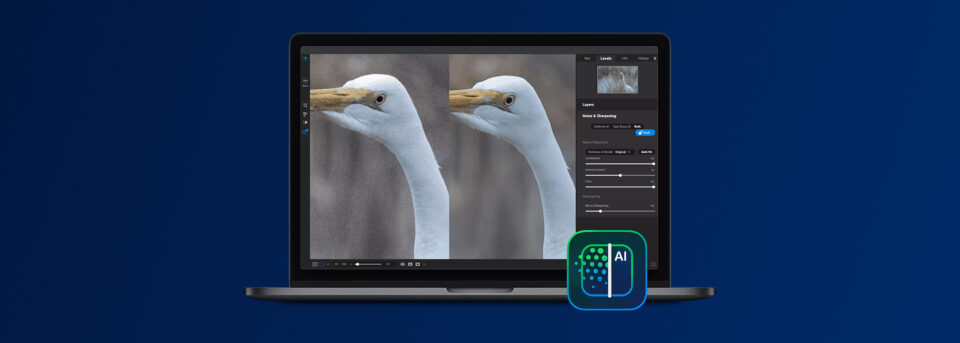
We built ON1 NoNoise AI to solve a problem we kept running into ourselves: getting clean, sharp results from high-ISO files without sacrificing the detail that makes a photo worth keeping. It handles both noise reduction and sharpening in a single pass, and it does both at a level that competes with (or beats) tools costing two to five times as much.
AI Noise Reduction That Preserves What Matters
The AI noise reduction engine performs exceptionally well on high-ISO files. We’ve tested concert photos at ISO 12800 and astrophotography frames at ISO 6400, and the results consistently preserve color fidelity and fine texture in a way that looks natural rather than processed.
TackSharp AI: Sharpening and Deblurring Built Right In
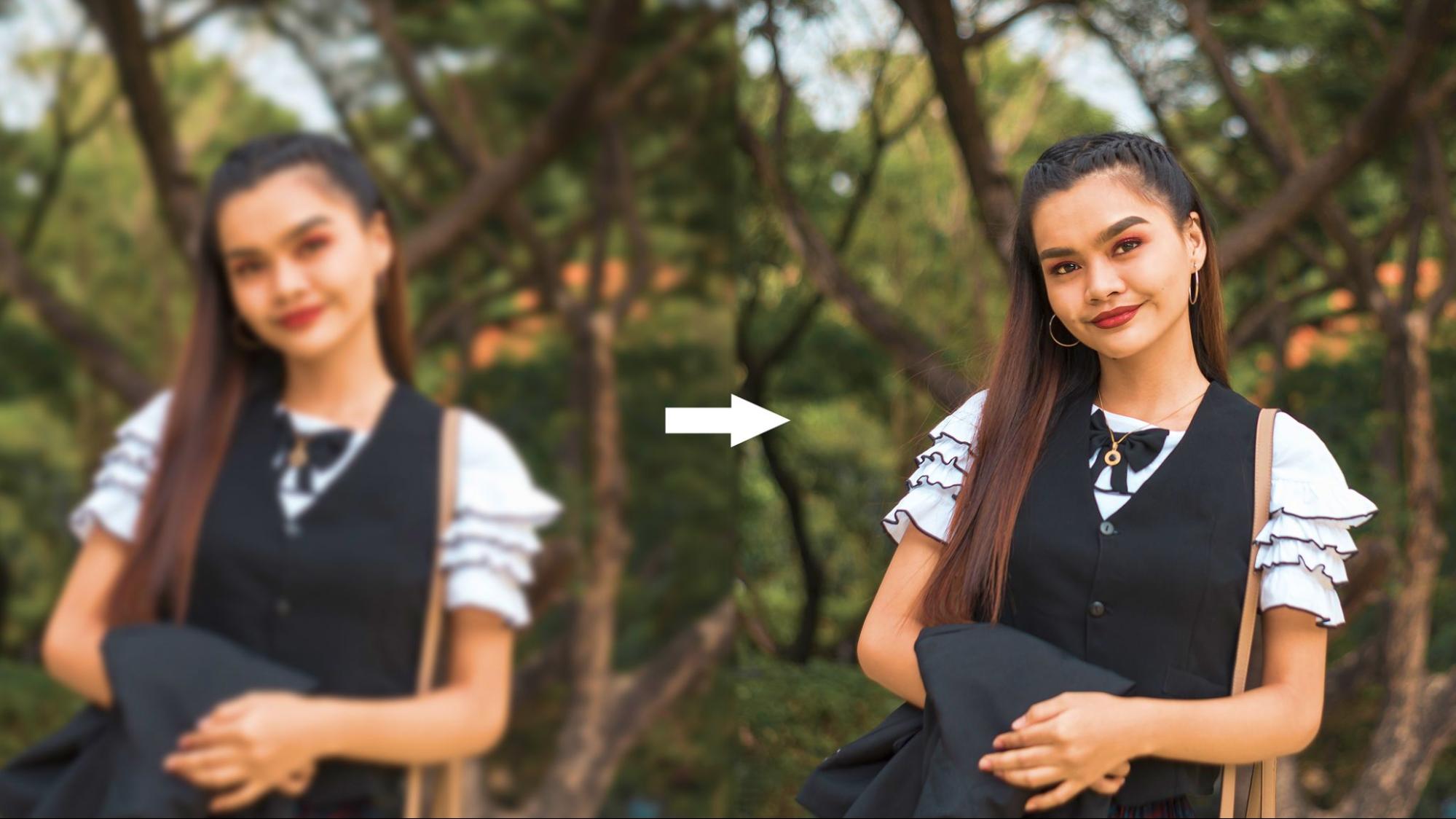
Here’s where NoNoise AI really separates itself: TackSharp AI. This is our built-in AI sharpening and deblurring tool that runs alongside the noise reduction. If your shot is slightly soft from camera shake or a marginal autofocus hit, TackSharp can pull back detail that you’d otherwise lose.
You can apply both NoNoise and TackSharp simultaneously in a “Both” mode, which means you get AI denoise and AI sharpening in one step. For event photographers blasting through hundreds of high-ISO frames, that kind of efficiency is huge.
Simple When You Want It, Precise When You Need It
The interface keeps things simple without dumbing things down. Auto mode intelligently analyzes each image and applies settings based on your preference level (Low, Medium, or High), so you can batch process quickly. But if you want to get granular, there are Luminance, Color Noise, and Detail sliders, plus the ability to apply adjustments selectively using layers and AI-powered masking.
Works With Everything, Costs Less Than You’d Expect
NoNoise AI also processes both RAW and non-RAW files at a high level, which is a notable edge over some competitors that only shine on RAW. And at $69.99 for a perpetual license with no subscription required, we think the value proposition speaks for itself. There’s a fully functional 30-day free trial with no watermarks and no credit card required, so you can test it on your own files before spending a cent.
Best for: Photographers who want top-tier AI noise reduction and AI sharpening in one tool, at a price that makes sense. Especially strong for event, concert, wedding, wildlife, and astrophotography workflows.
2. DxO PureRAW 6 – Best Pure RAW Preprocessing
Price: $139.99 (perpetual license) | Upgrades from v4/5 at $79.99–$89.99 | 14-day free trial
Works with: RAW files only | Standalone + Lightroom Classic plugin
DxO PureRAW has earned its reputation as a quality leader in RAW noise reduction, and the just-released version 6 extends its most advanced engine, DeepPRIME XD3, to Bayer sensor cameras (Canon, Nikon, Sony, Panasonic). Previously, XD3 was exclusive to Fujifilm’s X-Trans sensors, so this is a significant upgrade for the majority of photographers.
PureRAW’s approach is different from most tools on this list. It’s a preprocessor. You feed it your RAW files, it applies noise reduction along with DxO’s legendary camera-and-lens-specific optical corrections, and it spits out enhanced DNG files that you then open in Lightroom or your editor of choice. The results are stunning on RAW files, especially at extreme ISOs. DxO’s understanding of specific camera-lens combinations means the corrections are tailored rather than generic.
The downsides are real, though. PureRAW only works on RAW files. If you need to clean up a TIFF or JPEG, you’ll need something else entirely. The workflow adds an extra step before your normal editing process, which can feel clunky compared to tools that integrate directly into your editing app. And at $139.99 for a new license, it’s the second most expensive option here. The batch processing mode is excellent if you’re comfortable letting the AI make all the decisions, but there’s no image-by-image auto-analysis, so you need to manually sort which files get which processing algorithm.
Best for: Photographers who shoot exclusively in RAW and want the absolute best noise reduction quality from their files, with less concern about sharpening or deblurring.
3. Topaz Photo AI – Best All-in-One Enhancement Suite
Price: $399/year subscription (no perpetual license available)
Works with: RAW, TIFF, JPEG, PNG | Standalone + plugin for Lightroom, Photoshop
Topaz Photo AI combines noise reduction, sharpening, and upscaling (via Gigapixel) in a single application. If you need all three capabilities, there’s nothing else on the market that bundles them at this level. The Autopilot feature analyzes each image and automatically decides which corrections to apply, which is genuinely useful for mixed batches.
The noise reduction is good. On certain image types, particularly portraits and wildlife with clean backgrounds, it can produce excellent results. The sharpening module is strong, and the upscaling is among the best available for photographers who need to print large from cropped files.
However, Topaz made a controversial move in late 2025 by eliminating the perpetual license and going subscription-only at $444 or $900 per year. That’s a tough pill for photographers who were previously paying a one-time fee. There are also reports of the AI being overly aggressive in some scenarios, occasionally introducing artifacts or “hallucinated” textures in dark areas of high-ISO images. Processing speed can be slow due to a lengthy analysis phase, and the software is resource-hungry.
For photographers who need sharpening and upscaling capabilities on top of noise reduction and can stomach the annual cost, Topaz Photo AI remains a powerful option. But if your primary need is AI denoising and sharpening for high-ISO images, you can get comparable or better noise reduction quality for a fraction of the price elsewhere.
Best for: Photographers who need noise reduction, sharpening, and upscaling in a single tool and don’t mind paying a premium subscription for the convenience.
4. Adobe Lightroom AI Denoise – Best Built-In Option
Price: Included with Adobe Photography Plan ($9.99/month)
Works with: RAW files only | Built into Lightroom Classic and Lightroom CC
If you’re already paying for Adobe’s Photography Plan, the AI Denoise feature in Lightroom is a no-brainer to try. It’s been steadily improving, and for moderate noise levels, it does a solid job without requiring any additional software.
The appeal is pure convenience. Select your image, hit the Denoise button, adjust the slider, and you get a new DNG with noise reduction applied. No round-tripping, no plugins, no file management headaches. For photographers who keep their entire workflow inside Lightroom, this frictionless experience has real value.
The limitations show up when you push it. Like DxO, Lightroom’s AI Denoise only works on RAW files. It’s noticeably slower than dedicated tools, often taking 10-20 seconds per image. There’s only one slider to control strength, with no separate controls for luminance noise, color noise, or detail recovery. And at extreme ISOs, independent testing consistently shows that dedicated AI noise reduction photo tools like ON1 NoNoise AI and DxO PureRAW produce cleaner results with better detail retention.
There’s also no built-in AI sharpening or deblurring equivalent. Lightroom’s traditional sharpening tools are fine, but they’re not in the same league as AI-powered sharpening from ON1’s TackSharp or Topaz’s Sharpen module.
Best for: Lightroom loyalists who need occasional noise reduction for moderate ISOs and prefer not to add another tool to their workflow.
5. Luminar Neo (Noiseless AI) – Best for Casual Shooters
Price: Starting at $9.95/month or various bundle options
Works with: RAW, TIFF, JPEG | Standalone + plugin for Lightroom, Photoshop
Skylum’s Luminar Neo includes Noiseless AI as part of its broader editing suite. It’s extremely simple to use, with just three strength options: Low, Middle, and High. If you want a quick cleanup without thinking too hard about settings, it gets the job done.
The problem is that Noiseless AI lacks the ability to restore and enhance detail the way the top-tier tools do. Side-by-side comparisons with ON1 NoNoise AI and DxO PureRAW consistently show softer output, duller colors, and less texture retained in fine areas like feathers, fur, and foliage. For heavy-duty high-ISO work, that gap adds up fast.
Where Luminar Neo does have value is as a broader editing platform. If you’re already using it for sky replacement, portrait retouching, or its extensive creative AI tools, having a built-in (if modest) denoiser saves you from buying a separate application for lighter work.
Best for: Photographers already using Luminar Neo who need basic noise reduction for low-to-moderate ISO images.
The Bottom Line
Every tool on this list can reduce noise in a photograph. They all use AI, and they all produce results that would have seemed like magic a few years ago. The differences come down to how well they handle the hard stuff: extreme ISOs, fine detail preservation, combined sharpening and noise reduction, file format flexibility, workflow fit, and long-term cost.
For photographers who regularly push their cameras in challenging light, we built ON1 NoNoise AI to be the complete solution. The AI noise reduction quality competes with tools costing significantly more. TackSharp AI adds genuine sharpening and deblurring capability that most competitors either lack or charge extra for. It works on RAW and non-RAW files, plugs into virtually every major editing app, and costs $69.99 with no subscription strings attached. Our 30-day free trial is fully functional with no limitations, so you can test it against your worst high-ISO files and see for yourself.
Try ON1 NoNoise AI for Free
If you’ve been burning hours trying to rescue grainy photos or settling for “good enough” results from your current noise reduction workflow, give NoNoise AI a serious look. Download the free trial and throw your noisiest, most challenging images at it. That’s the only test that really counts.
Frequently Asked Questions About the Best AI Photo Sharpening Software
Should I apply noise reduction before or after sharpening?
Always denoise first. Sharpening works by increasing contrast along edges, and it can’t tell the difference between an actual edge in your photo and a speck of luminance noise. If you sharpen a noisy image, you’re amplifying the grain and making it harder to remove cleanly afterward. By denoising first, you give your sharpening tool a clean canvas so it only enhances the real detail in your shot. With ON1 NoNoise AI’s “Both” mode, this order is handled automatically in a single pass.
Is AI noise reduction considered acceptable in photo competitions and photojournalism?
This varies by organization, but AI-based noise reduction and sharpening are generally accepted in most photography competitions and editorial contexts. They’re typically treated the same as traditional darkroom or digital adjustments, such as levels, curves, and unsharp mask. Where most competitions draw the line is at generative AI that adds, removes, or replaces content in the image. Reducing noise and restoring sharpness doesn’t alter what was captured; it refines how clearly it’s presented. That said, always check the specific rules of any competition you’re entering.
Does AI noise reduction work as well on JPEGs and TIFFs as it does on RAW files?
RAW files always give the best results because they contain untouched sensor data, which gives the AI much more information to work with when separating noise from detail. That said, not every tool supports non-RAW formats. Some popular options (DxO PureRAW, Adobe Lightroom AI Denoise) only process RAW files. ON1 NoNoise AI is one of the few tools that handles JPEGs, TIFFs, PNGs, and PSDs at a high level, which is a real advantage if you need to clean up files that have already been through a round of editing.