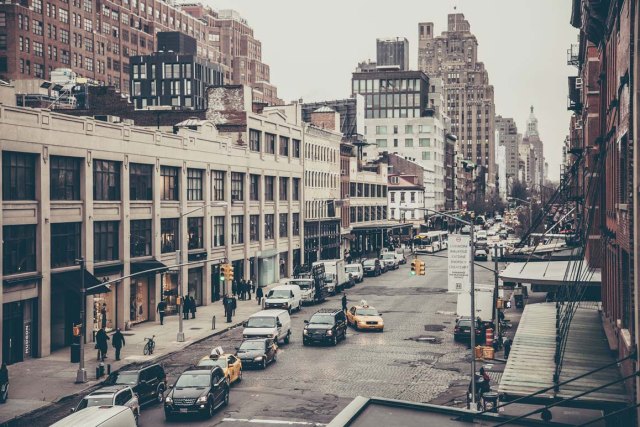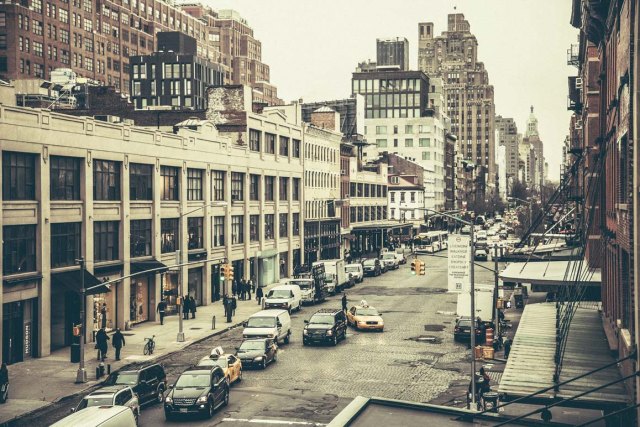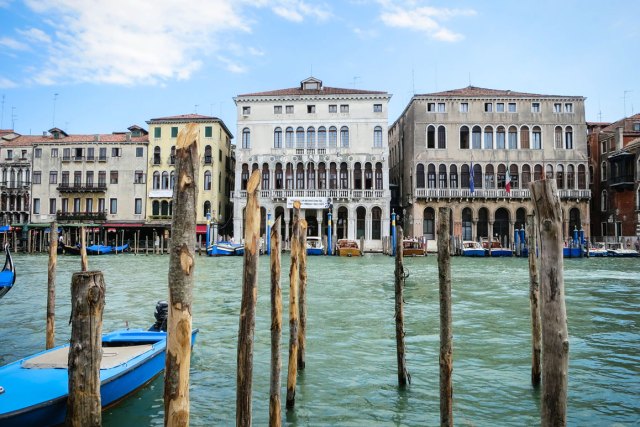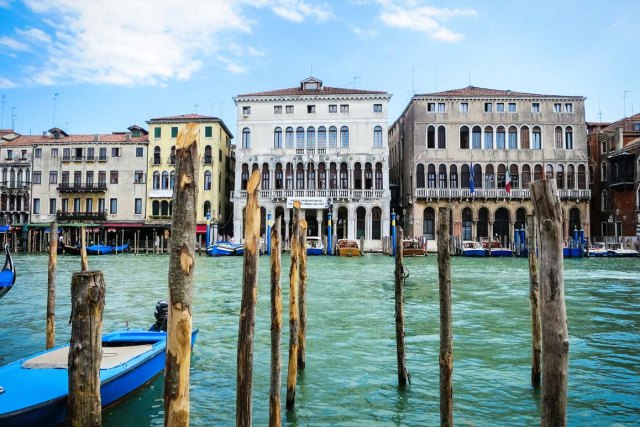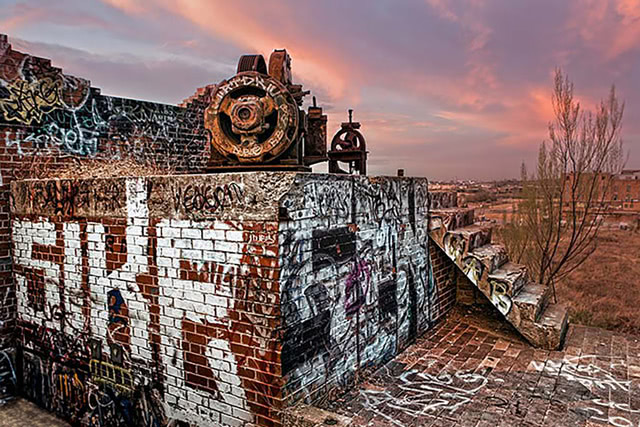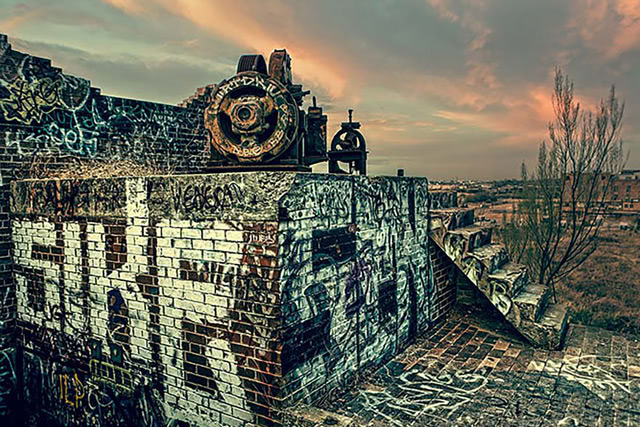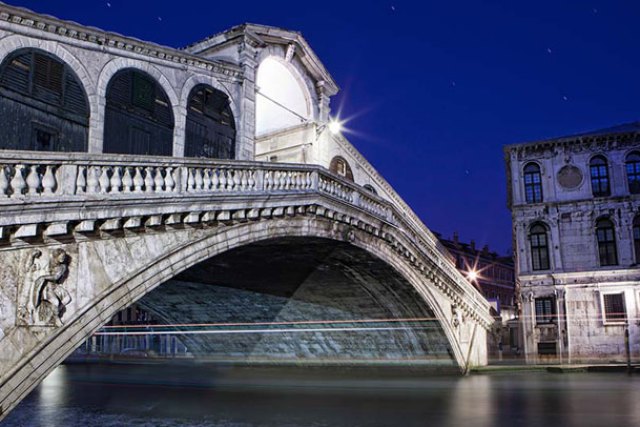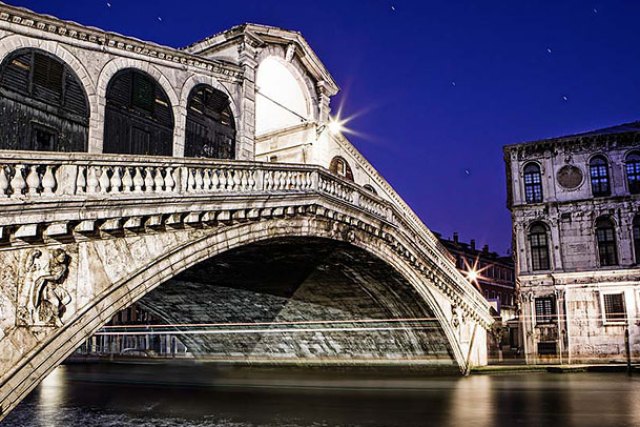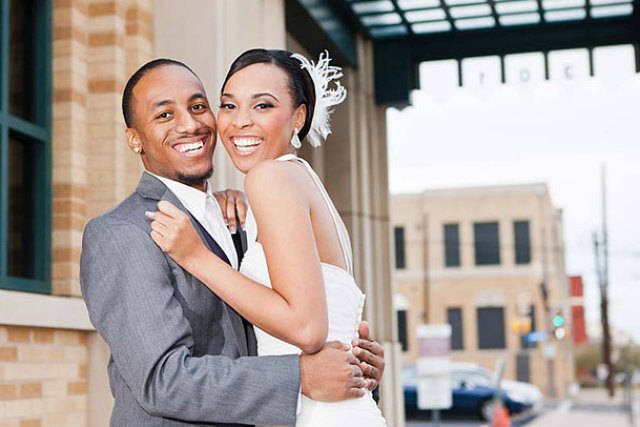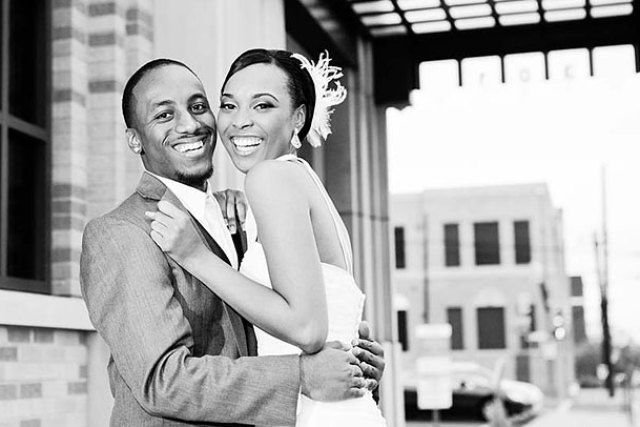
Free Lightroom Presets
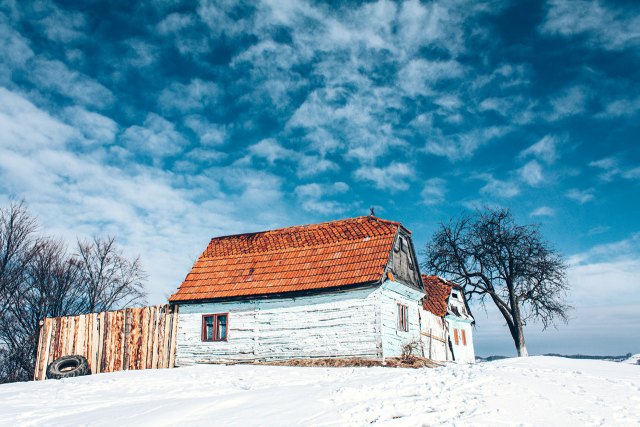
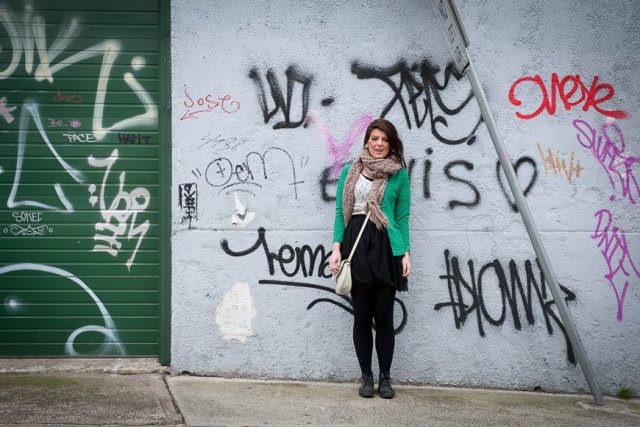
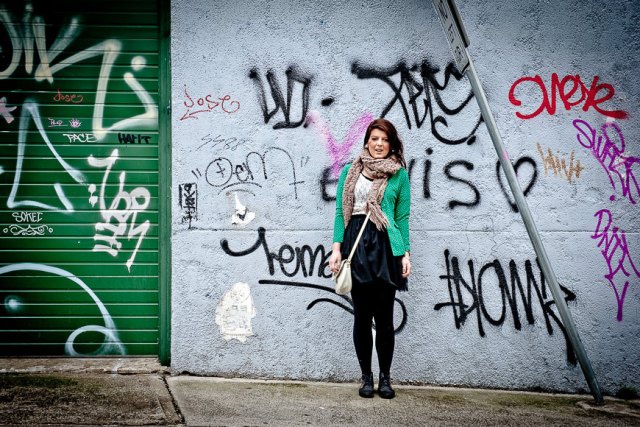
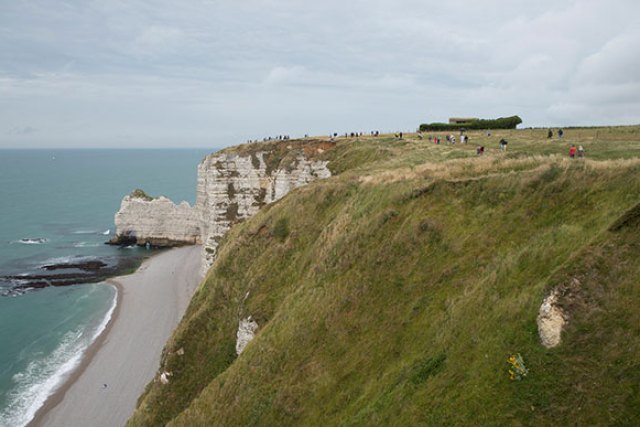
Download the best free Lightroom presets to quickly style and edit your photos. These free presets from ON1 and ON1 partners work with Adobe Lightroom 4, 5, 6, and Classic CC — speeding up your workflow and inspiring new creative directions for portraits, landscapes, urban, lifestyle, and more.
- Lightroom Classic
- Lightroom 6
- Lightroom 5
- Lightroom 4
- Lightroom Mobile
-
11 free preset packs • No credit card required
New to installing presets? Start with our step-by-step guide to free Lightroom presets for install instructions and pairing tips, then come back here to grab the packs.
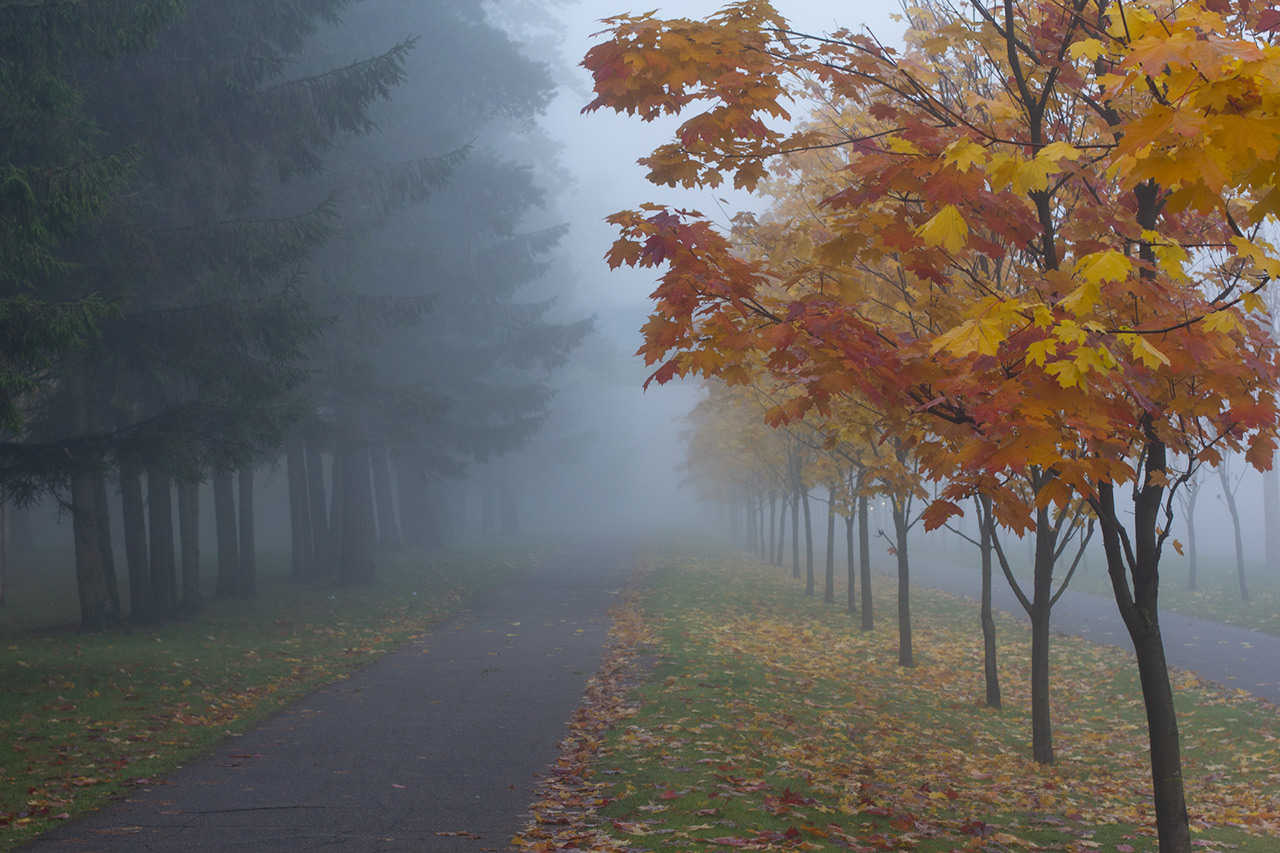
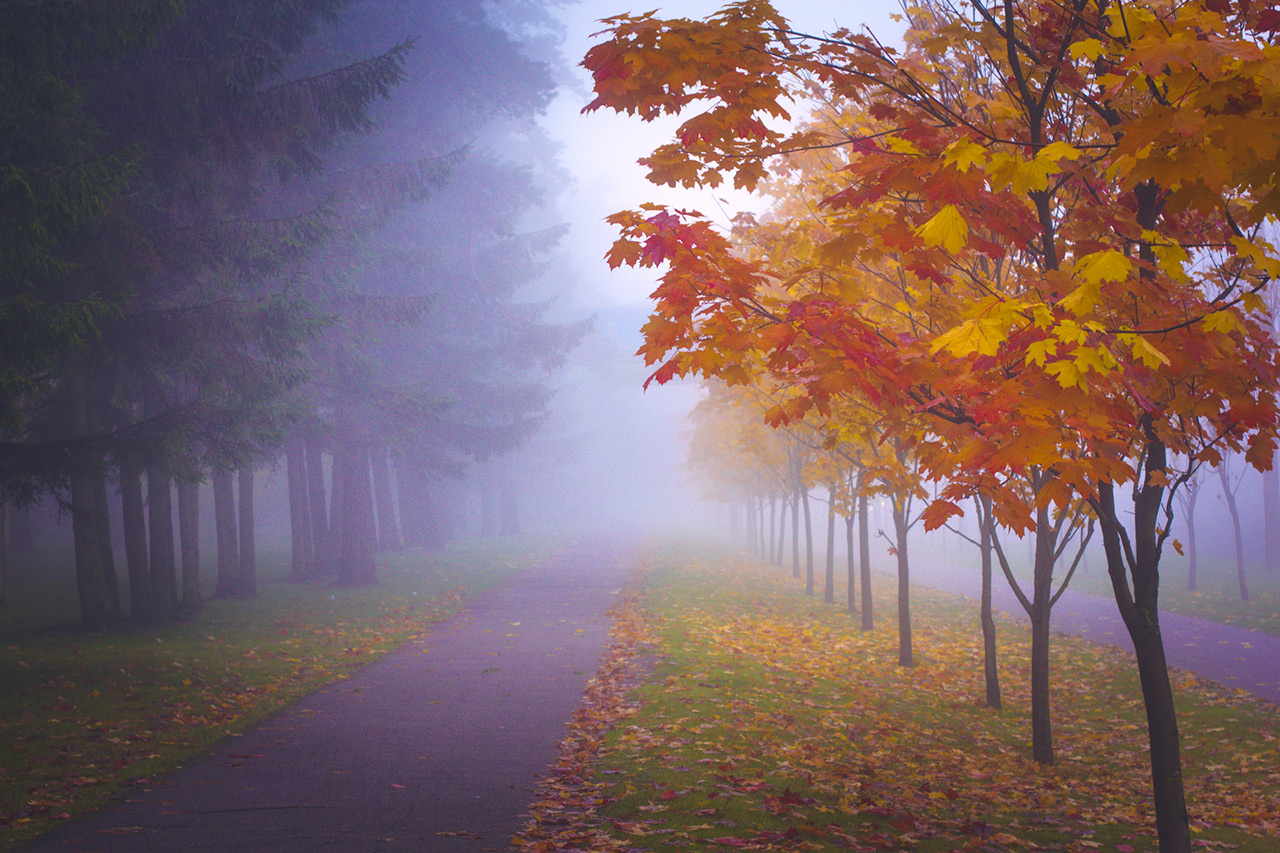
ON1 All Seasons Adaptive Presets
ON1 Original • 40 Presets
AI-based masking automatically enhances color, tone, and contrast for winter, spring, summer, and fall scenes.


Allrounder Presets by Shotkit
Partner: Shotkit • 10 Presets
A fun, versatile collection for Lightroom Classic and Mobile that nails a range of popular looks.
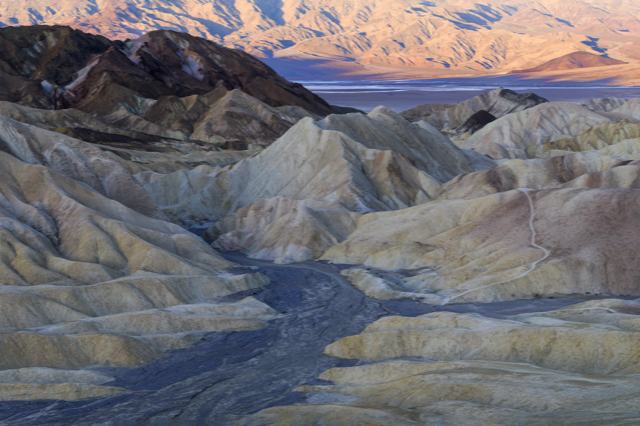
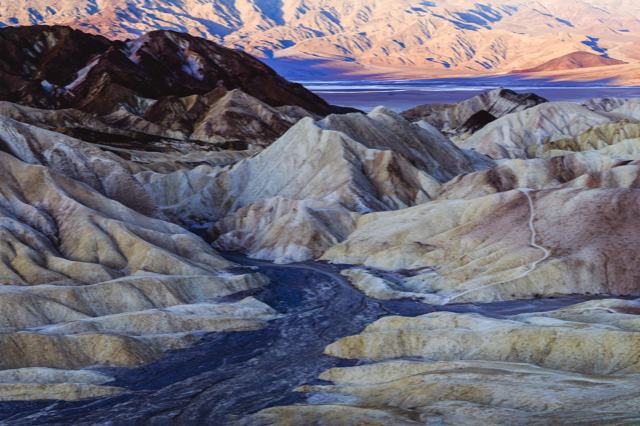
Film Landscape Starter Pack by Contrastly
Partner: Contrastly • 20 Presets
Popular film and travel-inspired looks, light-leak and film-roll effects, plus a sky enhancer for recovering sky detail.
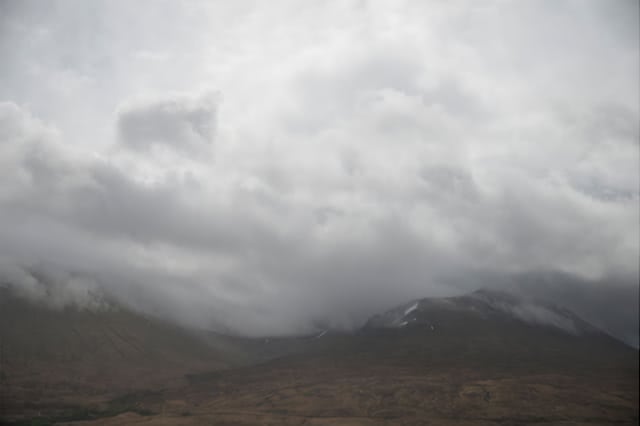
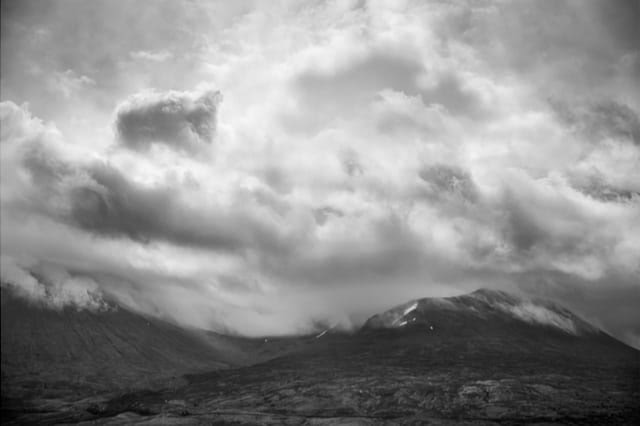
Landscape Vibrations Presets & Brushes by Sleeklens
Partner: Sleeklens • 30 Presets
Built for every type of landscape photo, with 16 brushes for local adjustments. Exclusive to ON1!

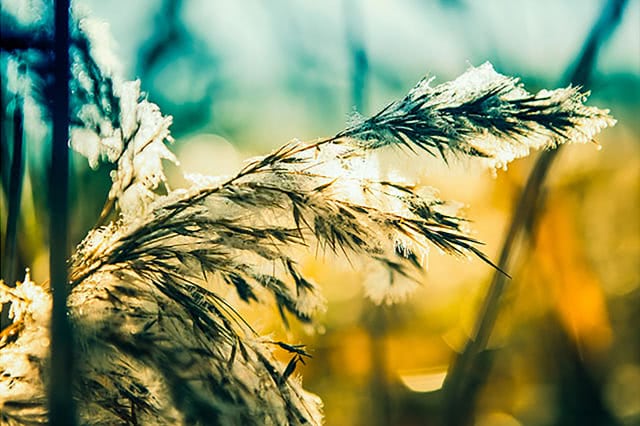
Winter Wonderland Presets by Contrastly
Partner: Contrastly • 20 Presets
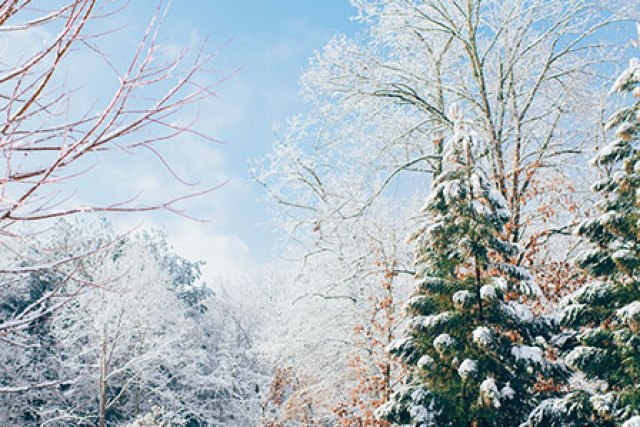
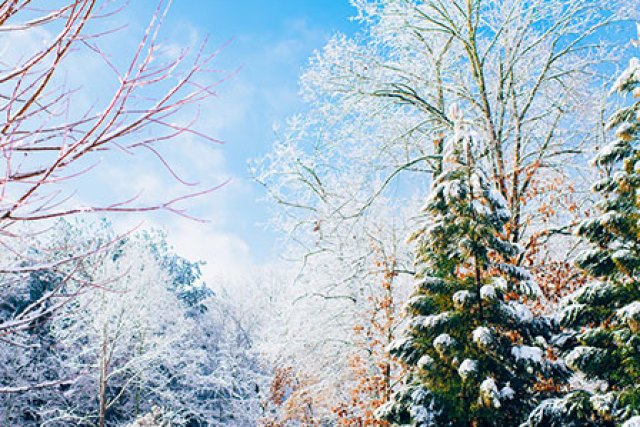
Some of Contrastly's newest and best winter-time presets to help you nail the perfect cold-weather look.
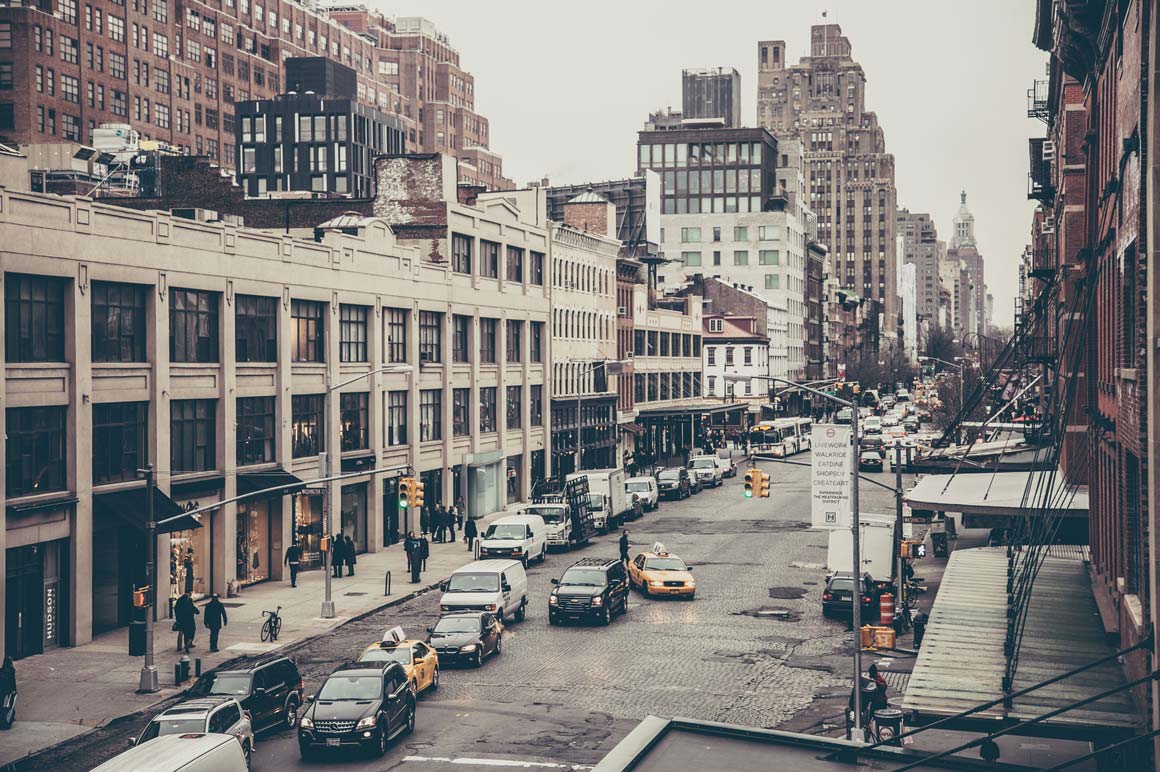
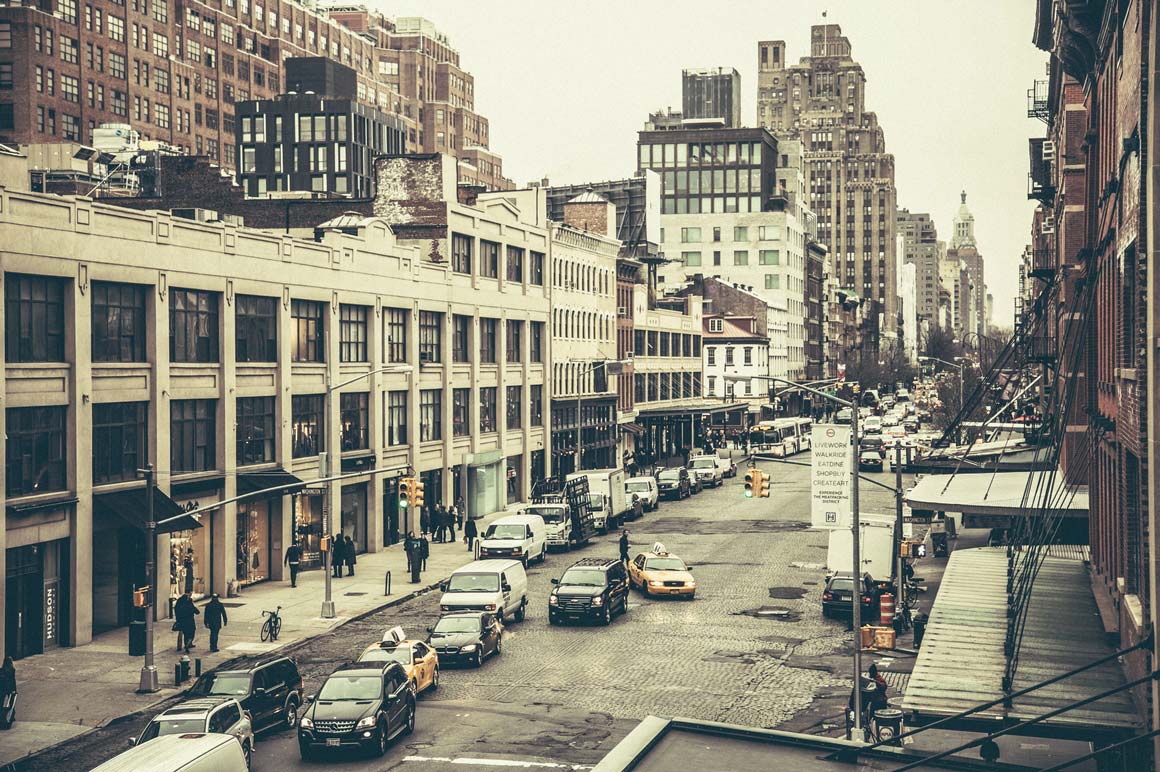
Grain & Film Presets by Contrastly
Partner: Contrastly • 10 Presets
Add grain and a retro film feel to any photo. Exclusive to ON1!
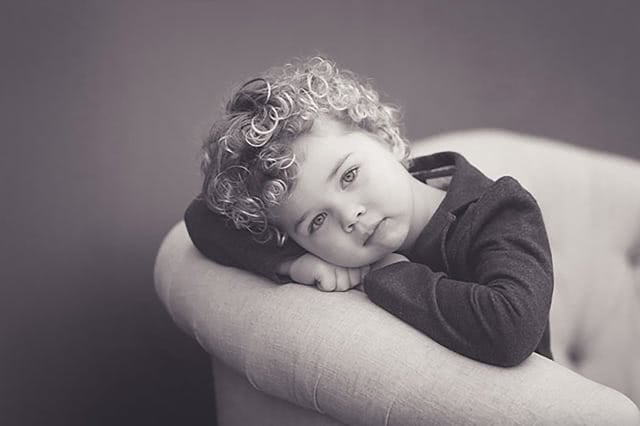
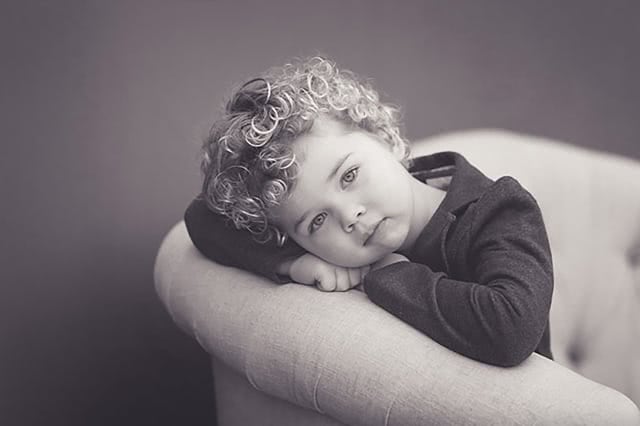
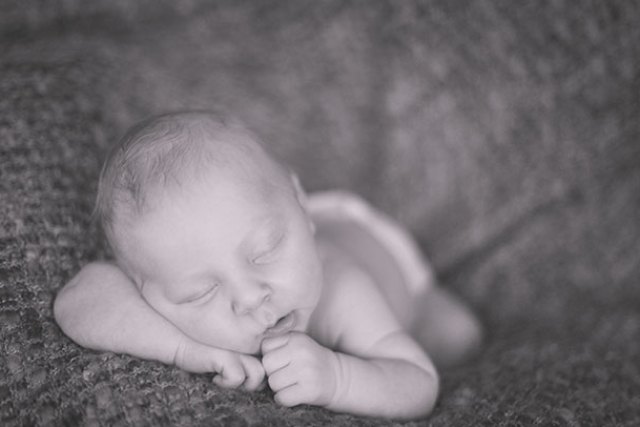
ON1 Kids Matte B&W Presets
Partner: Bliss Studio • 10 Presets
A matte black-and-white look built for baby and kid portraits that complements natural skin tones.
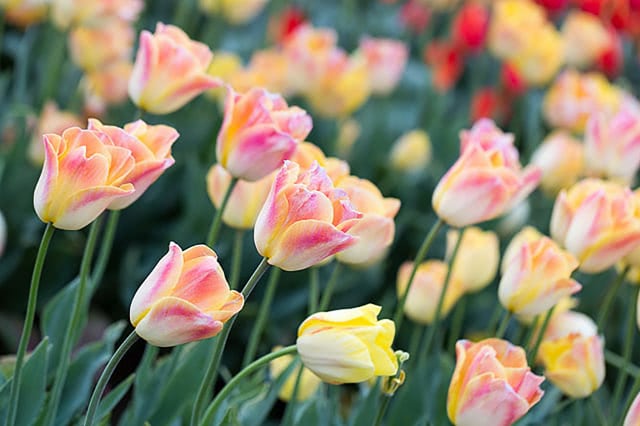
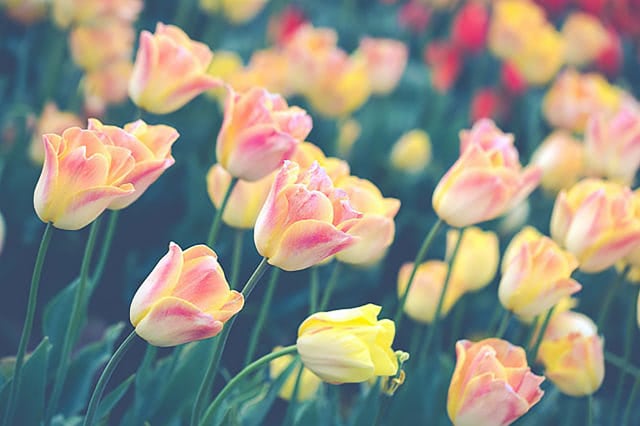
Nicolesy's Matte Presets
Partner: Nicolesy • 8 Presets
A vintage, "faded with time" matte look — softened blacks with a slight split-toning effect.


Matt Kloskowski's Spotlight Presets
Partner: Matt Kloskowski • 12 Presets
Uses Lightroom's Radial Filter to control exactly which area of the photo gets highlighted.
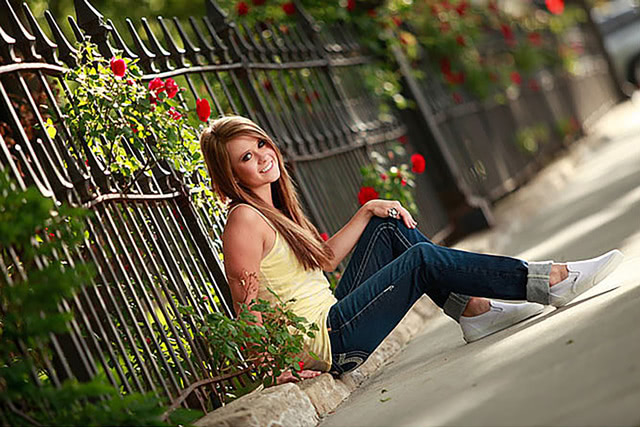
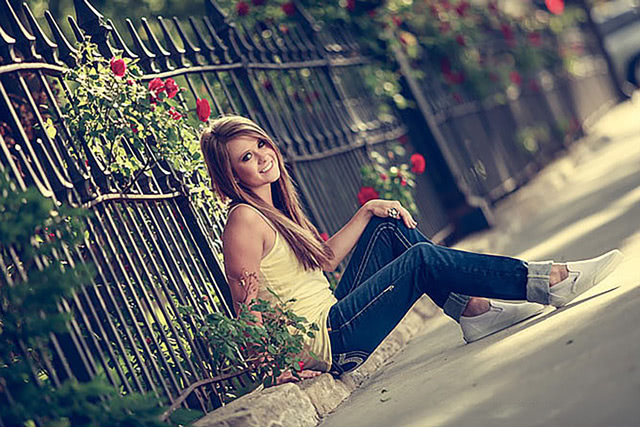
ON1 Signature Collection Presets, Vol. 2
ON1 Original • 16 Presets
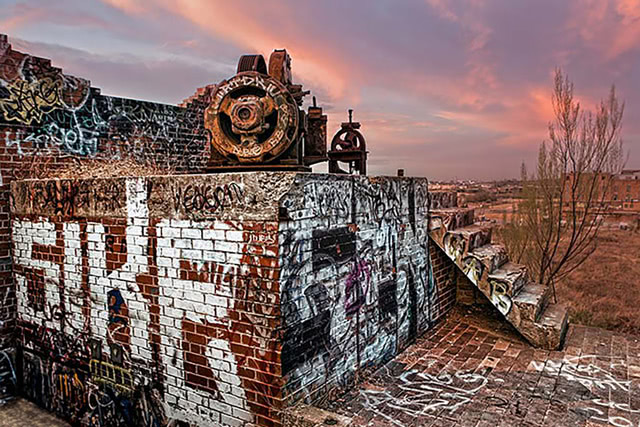
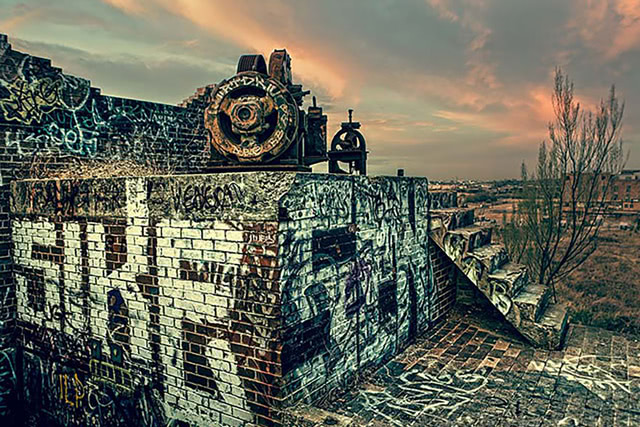
Popular Instagram-filter looks, cross-processing techniques, grunge styles, and more.
ON1 Signature Collection Presets, Vol. 1
ON1 Original • 62 Presets
Built with Lightroom's adjustment tools — a large, versatile collection to make any image pop.
Go Further Than Presets
ON1 Plugins for Lightroom


How to Install & Use Free Adobe Lightroom Presets
Once you've downloaded your chosen presets, here's how to get them into Lightroom and start using them.
1
Launch Adobe Lightroom
Open Lightroom on your desktop and navigate to the Develop module.
2
Open the Preset Panel
Find it on the left side of the screen, or via Window → Panels → Presets.
3
Import the Presets
Click the "+" icon, choose Import Presets, and select the downloaded .xmp or .lrtemplate files.
4
Start Using Your Presets
Find them in a new folder in the Presets Panel — click any preset name to apply it instantly.
Tips & Tricks for Using Free Lightroom Presets
Expert guidance to help you get the most out of your free Lightroom presets.
Presets give your photos a cohesive look and speed up your workflow, but keep using your creative eye — every image may need additional tweaks even after applying a preset.
Presets aren't one-size-fits-all. Each photo has unique lighting and color, so you may need to adjust a preset to fit each image perfectly.
Don't limit yourself to one or two presets — trying an unexpected one can produce a surprisingly great result.
Once comfortable with Lightroom basics, tweak sliders and settings on top of a preset to make it truly your own.
Lightroom allows you to apply more than one preset to an image. The most recently applied preset overwrites similar settings from earlier ones.
Even after a preset, you may still need to adjust exposure, contrast, and white balance for the perfect final result.
Select all images from a similar shoot in the Develop module, click "Sync," and apply the same preset settings to all of them at once.
Once you've built a library of favorites, back them up — you don't want to lose your hard work if something happens to your computer.
Frequently Asked Questions About Lightroom Presets
What Are Lightroom Presets?
Saved editing settings — essentially "filters" — that automate and simplify photo editing in Lightroom. They apply a consistent style, create a specific mood, or correct common issues like underexposure with just a few clicks.
Can I Use Presets on Both Mobile & Desktop Lightroom?
Yes, but you'll need to import them into each version separately. Not every preset is compatible with the mobile version, so check the specifications before downloading.
Are Free Presets as Good as Paid Ones?
Quality isn't determined by price — plenty of free presets produce stunning results. The right choice depends on your personal style and the specific needs of your photos.