Anyone who has ever tried to blow up a small image knows the struggle. The moment you scale it past its comfort zone, everything falls apart. Edges get fuzzy, backgrounds break into little squares, skin texture looks fake, and fine details just kind of blend together. It’s frustrating, and it happens even faster when you’re working with old files, tiny crops, or outdated image upscaler software.

If you’re ready to try something new, you’re in the right place. We’re here to help you choose the best image resizer for your needs in 2026. You’ll get a tight, curated look at the top tools on the market, a deeper look at how they compare, and how to find the best option for you.

  1. Best AI Image Resizers
  2. The ON1 Resize AI Difference
  3. How to Choose the Right Resizer
  4. Key Features to Look For
  5. Frequently Asked Questions

Best AI Image Resizers: A Curated List

AI upscaling tools have exploded in popularity, but only a handful consistently produce clean, realistic enlargements that hold up when printed big or displayed on high-resolution screens. Below is a curated list of the strongest options for 2026. Each one has its place, although one clearly stands out when you compare real output quality, workflow features, and value.

1. ON1 Resize AI 2026

If you want the best image resizer for real-world photography and large-format work, this is the one to pay attention to. ON1 Resize AI pairs powerful AI photo enlarger software with the legacy of ON1’s renowned interpolation engine, giving it a level of detail retention that feels almost unfair compared to traditional methods.

Where it shines:

  • Two specialized AI models for both general photos and more challenging subjects like tight crops or AI art
  • A patented interpolation algorithm that helps preserve organic texture
  • Fast batch tools that make large project workflows easier
  • Plugin support for Photoshop, Lightroom Classic, and Capture One
  • A print prep toolkit with options like gallery wrap, crop presets, and tiling

Where it’s not perfect:

  • The highest quality AI model can be slower on older hardware
  • Best results come from experimenting with settings rather than sticking to defaults

It stands out as one of the best AI image resizer options for anyone who needs consistent, natural enlargements, but it’s not a magic button. It rewards users who spend some time fine-tuning the model and settings.

From Tiny to Stunning: See ON1 Resize AI 2026 In Action

If you want to know more about why ON1 Resize AI keeps getting so much attention, this quick walkthrough is worth a look. Watching it in motion gives you a clearer sense of how the software rebuilds texture, controls noise, and keeps images looking natural at sizes that normally fall apart.

Best AI image resizer

2. Topaz Gigapixel AI

Gigapixel AI has earned its reputation by leaning hard into AI detail reconstruction. If your files are soft or low resolution, this tool can push them surprisingly far.

Where it shines:

  • Strong recovery of fine details
  • Capable of very large-scale jumps
  • Well-suited for images that need serious cleanup

Where it falls short:

  • Processing speed can drag depending on hardware
  • The sharpening pass can sometimes push too aggressively
  • Lacks dedicated print prep tools

Gigapixel is impressive in the right hands, especially for difficult files. It just takes more tweaking to avoid an oversharpened look; its one-size-fits-all approach can be a little intense depending on the subject.

3. Adobe Photoshop Super Resolution

If you already spend a lot of time inside Photoshop, Super Resolution is a handy option to have. Adobe’s AI algorithm does a respectable job on moderate enlargements, and it’s effortless to apply.

Where it shines:

  • Convenient one-step workflow
  • Decent improvements for general-purpose enlargements
  • Familiar interface for anyone already using Photoshop

Where it falls apart:

  • Works best on modest upscales
  • Limited control
  • Requires a subscription
  • Not ideal for print size jumps

It’s a good safety net, but it doesn’t match the refinement of dedicated AI photo enlarger software, especially when you need big prints.

4. Pixelmator Pro ML Super Resolution

Pixelmator Pro leans into speed and simplicity. It’s a lightweight option for Mac users who want a fast upscale without diving into knobs and sliders.

Where it shines:

  • Very clean interface
  • Fast performance on Apple Silicon
  • Simple enough for quick fixes and social media-sized enlargements

Where it falls short:

  • Struggles with complex textures
  • Less consistent than dedicated upscalersLimited to macOS

It’s ideal for smaller enlargements or quick turnarounds, but less consistent when you push files into heavy upscaling territory.

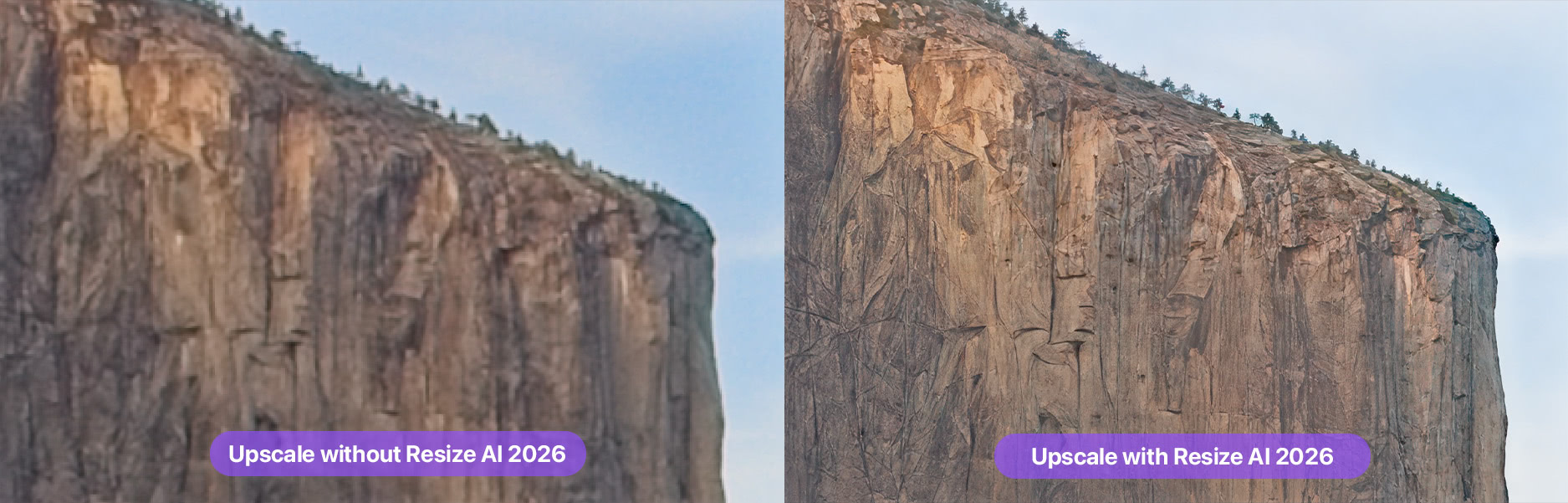
Before and After: The ON1 Resize AI Difference
The ON1 Resize AI Difference></p><h2 id=

Picking the right tool doesn’t mean going for the flashiest AI model. It depends on how you work, what you shoot, and where the final image is going. A good upscale can make a small file print-ready. A bad one can expose every flaw on a giant canvas.

Here are the factors that matter most when sorting through your options.

Your Primary Use Case

Start by thinking about how your images will be used. If you create large prints, you need an upscale engine that keeps real texture intact instead of inventing sharpness that looks fake up close. For graphics or mixed media pieces, you want precise edge control. If the goal is to restore old photos or boost low-resolution images from older phones, a tool with strong noise handling makes a difference. Each software leans toward certain strengths, so it helps to match your needs with what the tool does best.

Workflow Fit

Some people want a standalone application where they can adjust everything in one place. Others prefer a plugin that blends into their existing routine.
ON1 Resize AI pulls ahead here because it offers both. You can run it solo for full control or bring it into Photoshop, Lightroom Classic, or Capture One without breaking your rhythm. If your workflow already feels tight and efficient, choosing a tool that complements it instead of replacing it will save you time.

Budget and Licensing Style

Every tool in this category handles pricing differently. Some are subscription-based. Others are one-time purchases with optional upgrades. Consider how often you need major updates and whether the investment matches your workload. It’s also smart to check if the software includes features beyond basic upscaling, such as batch tools or print prep options. That kind of added value can justify the cost more than a basic algorithm alone.

Hardware Considerations

AI processing can be demanding. If your system is older or running minimal resources, look for tools with lighter models or adjustable performance settings. Resize AI has a standard model built specifically for broader hardware compatibility, which helps avoid slowdown. If your machine can handle heavier processing, switching to its highest quality model gives you a notable jump in detail.

Test Files Before Committing

It’s almost always worth trying a free trial and running a few sample images through different scaling tools. Look closely at textures, edges, and gradients. Check how the tool handles noise or softness. Compare at full screen and at 100 percent view to understand how the upscale really behaves. Small differences become huge once an image is printed or shown on a big display.

Once you evaluate these areas, it becomes much easier to recognize which tool supports your goals and which ones fall short when pushed beyond basic use.

AI photo enlarger software

Key Features to Look For in an Image Resizer

There are a lot of AI tools promising sharper, cleaner enlargements, but only a few have the right blend of power, control, and consistency. When you’re comparing image upscaler software, pay attention to the features that genuinely affect output quality and how smoothly you can work. These are the areas that matter most once you start scaling files beyond their comfort zone.

AI Engine Quality

A strong AI model understands how real detail behaves. That means natural texture instead of brittle sharpening, smooth gradients instead of blotchy shadows, and believable fine structure when you jump to larger print sizes. Look for tools that offer more than one model so you can match the algorithm to your subject.

Batch Processing That Saves Time

If you work with large sets of images, batch processing is more than a convenience. It can cut hours off a project. A good batch tool gives you consistent results across an entire set and lets you scale, rename, and output files at specific sizes without babysitting every step. Resize AI includes batch controls that stay predictable even when handling big galleries, which makes high-volume work far easier.

Image upscaled software

Tools That Support Real Printing

Anyone preparing large prints knows that upscaling is only part of the process. You also need features that help the final output look clean and intentional. Useful tools include crop presets, soft proofing, gallery wrap, and precise sizing options. ON1 Resize AI shines here because print features are baked directly into the workflow. They help you prep large canvas prints or panel layouts without jumping between multiple programs.

While you’re exploring these capabilities, this resource can help you understand the fundamentals: How to Resize an Image Without Losing Quality.

Color Accuracy and Artifact Control

Upscaling should make an image look bigger, not different. Strong software keeps colors consistent and avoids halos, ringing, and banding. This is especially important in shadows and gradients, where cheaper tools tend to break down. Paying attention to these subtle areas often reveals which AI model is genuinely more refined.

Flexible Output Options

Every project is different, so it helps when the software can scale by preset dimensions, custom measurements, or percentages. Look for tools that make it easy to build repeatable output settings. Resize AI offers preset sizes, export templates, and custom dimensions that you can save for future work, which builds a smoother long-term workflow.

When you compare these features side by side, the gap between average software and advanced tools becomes clear. A strong AI engine is a good start, but consistent control, print-focused options, and reliable batch processing are what make a tool practical.


Try the Best Image Resizer for Free Today

Small images can go big when the right tool handles the lift. If you want clean detail, natural texture, and reliable results at serious sizes, ON1 Resize AI makes the process smooth and gives you the kind of output you want. Download your free trial of ON1 Resize AI and see what your images look like when the resizing process finally works the way it should.

Download ON1 Resize AI


Frequently Asked Questions About AI Photo Enlarger Software

What makes AI image resizers better than traditional resizing tools?

AI-based tools study patterns in real photos, so they can rebuild missing detail instead of stretching pixels. This leads to cleaner textures, smoother gradients, and more natural-looking enlargements. Traditional methods rely on basic math, which often creates blur, softness, or blocky artifacts when pushed too far.

Is AI upscaling good enough for large prints?

Yes, especially with high-quality models. If the software can preserve texture and edge clarity, a small file can scale up to poster or canvas size with confidence. ON1 Resize AI includes print prep tools that make sizing and layout much easier.

Do I need a powerful computer for AI image resizing?

More power helps, but it isn’t required. Some apps offer lighter models for older hardware. Resize AI includes a standard mode that runs smoothly on a wide range of systems while still producing strong detail.